Diorama Studio

AI Diorama Generator

Printara turns a text prompt or a picture into a miniature diorama of separate 3D models that you arrange on one stage and export as STL files for 3D printing.

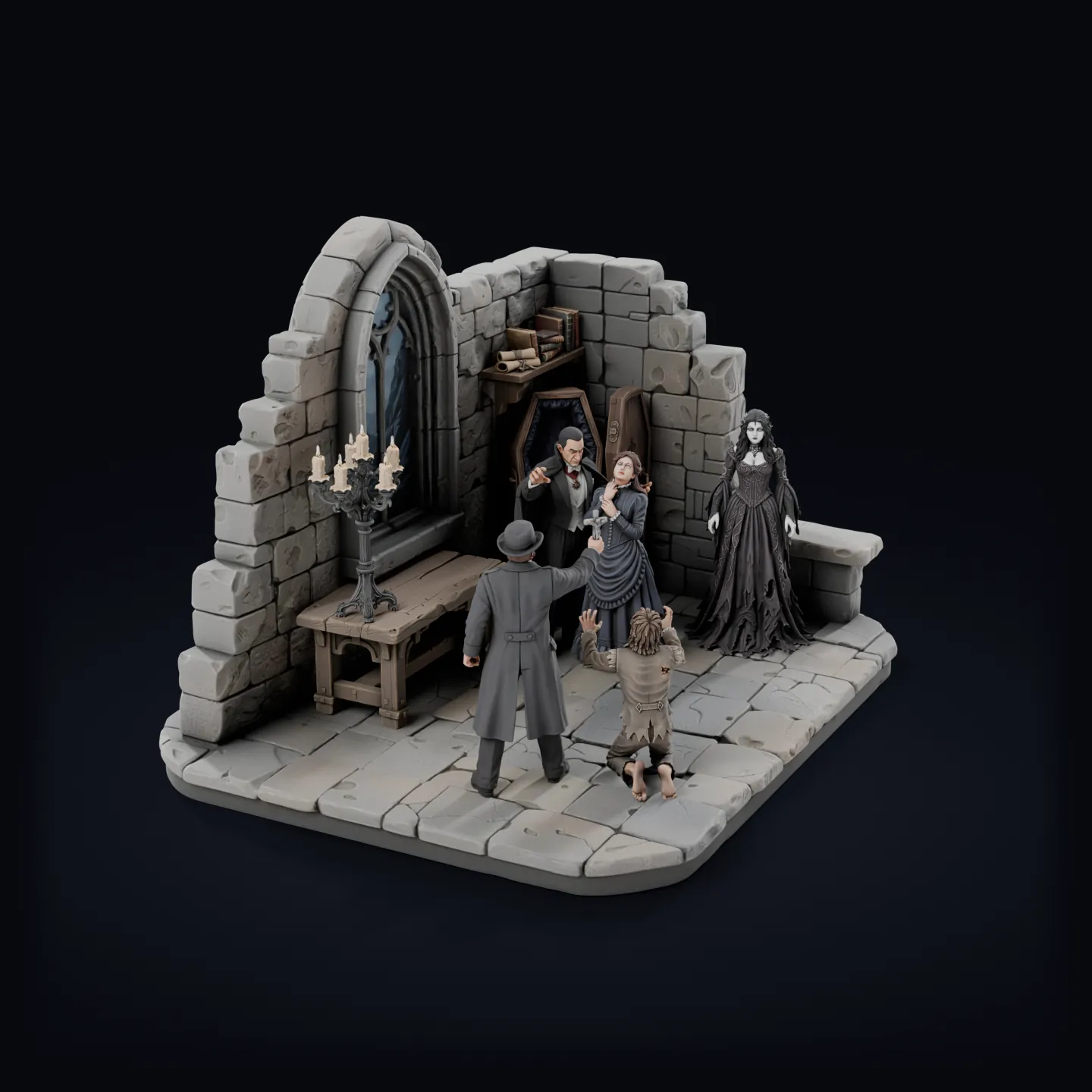
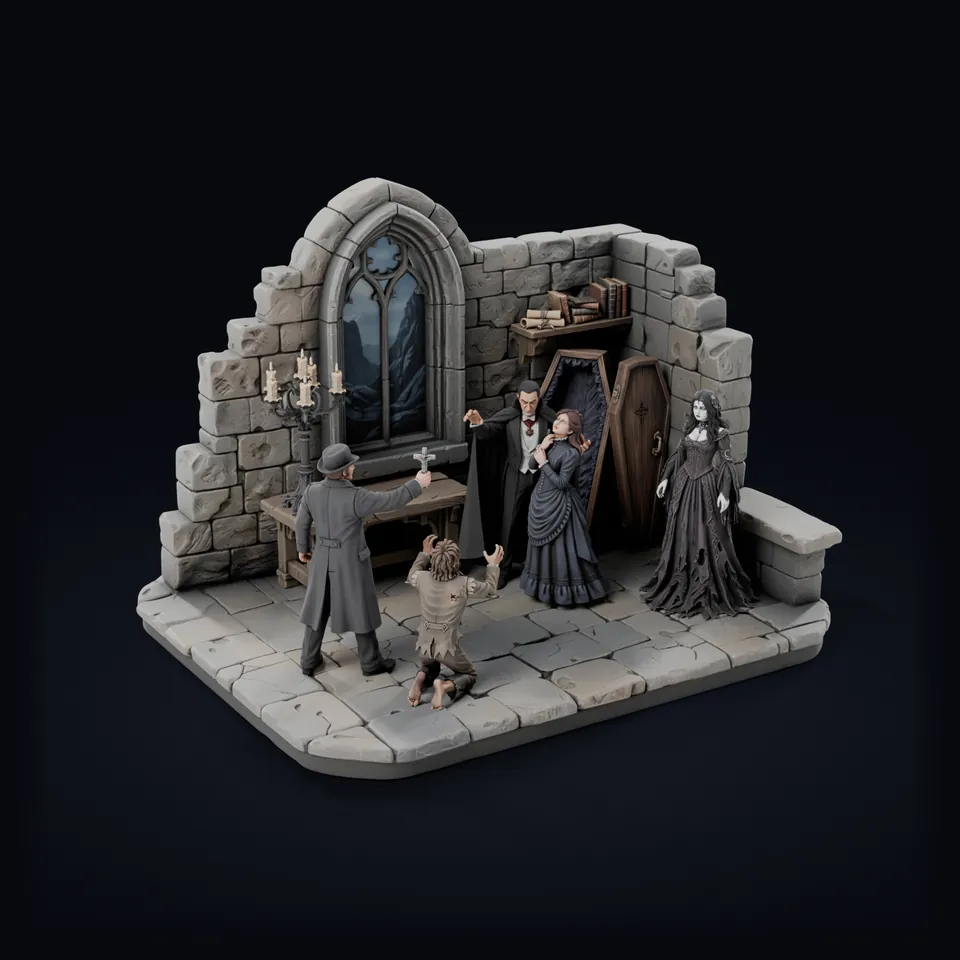
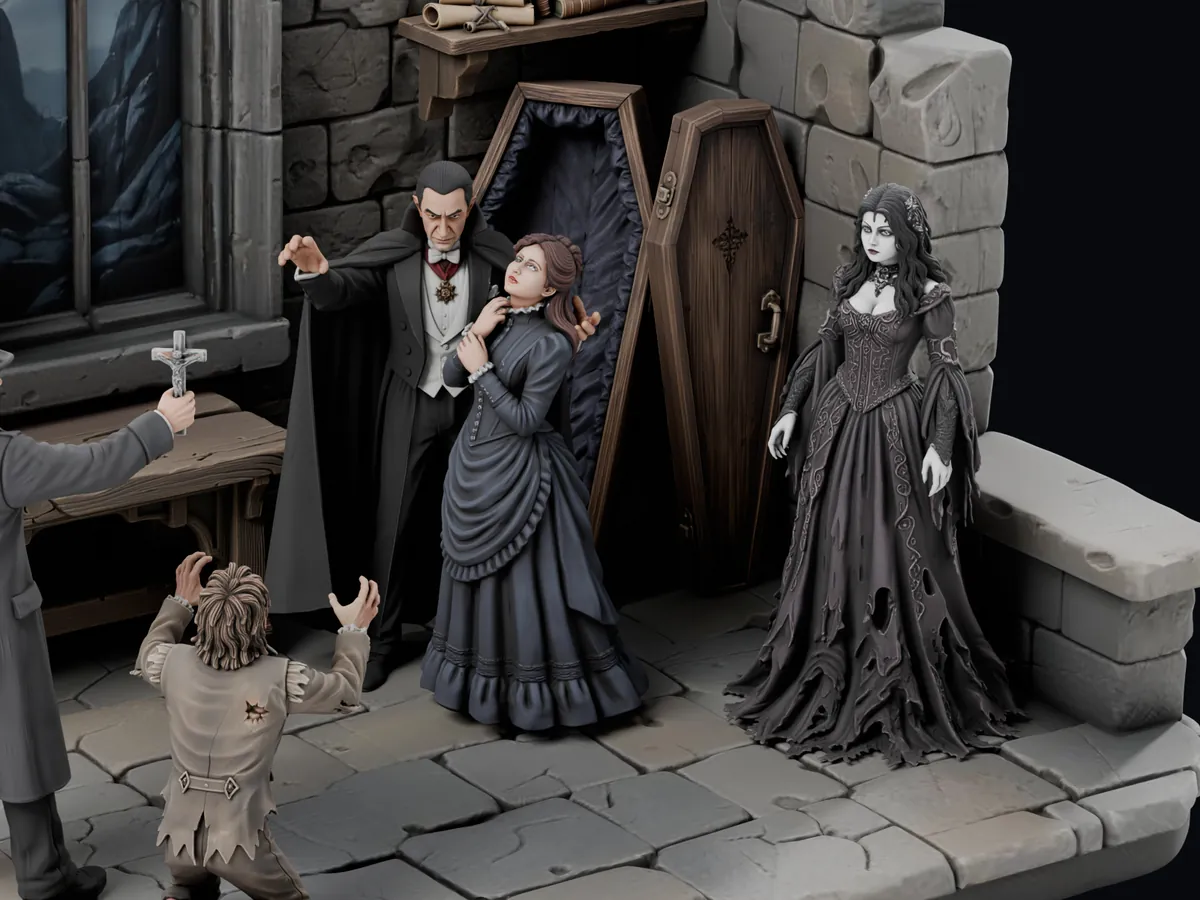
Dracula Castle diorama made in Printara Diorama Studio: a ruined gothic chapel where Count Dracula holds a woman in a blue gown while a vampire bride watches and a vampire hunter raises a crucifix over a kneeling man

Drag to rotateSwipe to rotate

Open Diorama StudioOpen StudioSeparate the diorama into its 10 parts. Press again to put it back.Show all 10 parts on the supports Printara made for them, on one build plate. Press again to go back to the scene.See how it works
  • Prompt or picture
  • Every part its own model
  • STL in millimetres
  • Up to 24 models per pack

Dracula Castle, 10 parts, made in Printara Diorama Studio. Rendered from its models with their 2K colour textures.

Inspect a part

  1. 01Count DraculaFigure
  2. 02Woman in BlueFigure
  3. 03Vampire HunterFigure
  4. 04Kneeling ManFigure
  5. 05Vampire BrideFigure
  6. 06Open CoffinProp
  7. 07CandelabraProp
  8. 08Wooden TableProp
  9. 09BookshelfProp
  10. 10Castle SetSet

Dracula Castle, 10 parts, made in Printara Diorama Studio. Rendered from its models with their 2K colour textures.

Presupported by Printara: all 10 parts on one Phrozen Sonic Mega 8K S build plate, 1,363 supports with 1,345 contact tips and 1,313 round pads, 5 mm lift, no raft. At this scale every part prints solid.

At a glance

What Diorama Studio does, from the first prompt to the print files.

  • Start from a text prompt or a picture
  • Read a master scene into up to 30 separate elements
  • Concept art for every element, with regenerate and split
  • Build models without texture or with 2K, 4K or 8K colour textures
  • Arrange, measure and size every part in millimetres
  • Export a ZIP of STL parts placed as arranged
  • Create marketing images and publish listings

Anatomy of a scene

What you can create

A diorama is made of characters, props and the place they stand. Diorama Studio reads your scene and lists the pieces worth printing, and you choose which ones become models.

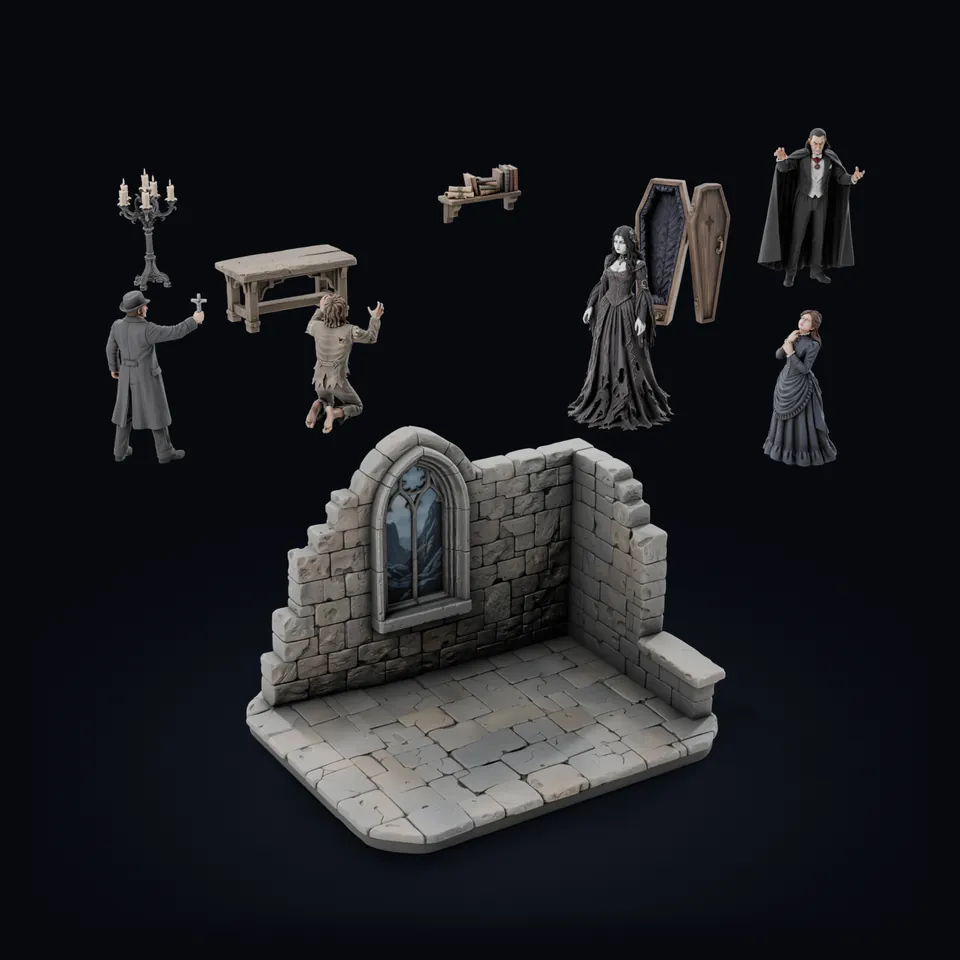
The Dracula Castle diorama taken apart into its 10 separate models: five figures, four props and the castle set
The Dracula Castle diorama taken apart: five figures, four props and the castle set.Render
  1. Characters and creatures

    Heroes, villagers, monsters and animals, each as its own figure. By default, anything a character holds stays with that character, so a lantern or a spear is part of the figure that carries it.

  2. Props and vehicles

    Tables, chests, candelabras, carts and boats. Every object that stands on its own can be a separate part.

  3. Settings and terrain

    Walls, floors, rocks, trees and bases. The set that remains once the figures are taken out can become a part of its own.

  4. Whole miniature scenes

    A tavern, a chapel, a market street, a battlefield. One read of a scene lists up to 30 elements, and one exported pack holds up to 24 models.

Themes

  • Fantasy
  • Medieval
  • Gothic and Halloween
  • Christmas and winter
  • Historical
  • Sci-fi
  • Your own world

How it works

How the AI diorama generator works

Six steps take a scene from an idea to parts on your print bed. The names match the tabs and buttons in Diorama Studio.

  1. Prompt or picture

    Describe the scene in a sentence, or type one idea and press Write the scene for me. Prefer a picture? Drop in a sketch, a photo or your own artwork and have it rebuilt as miniatures, or use a photo of a diorama you already have as it is.

  2. Generate

    Diorama Studio creates a master scene in the aspect ratio you pick, at Fast or Ultra 4K quality. Generate again until it looks right, then press Read this scene to list every character, prop and piece of setting in it.

  3. Edit

    Tick the elements you want. Each one comes back as concept art on a white background. Keep what you like, regenerate or split the rest, then build the approved concepts in 3D, without texture or with a 2K, 4K or 8K colour texture.

  4. Prepare

    Your models land on one stage. Move, rotate and scale them, set the printed height in millimetres, stand everything on a solid floor and check sizes with Measure and Distance. Save the arrangement as a pack.

  5. Export

    Press Export ZIP. You get one STL file per part, sized in millimetres and placed where it stood on the stage.

  6. Print

    Open the STL files in your resin or FDM slicer, add supports, print the parts, then paint and assemble the scene.

Only what you tick is generated, and every paid button shows its credit cost before you press it. Your scene is saved after each paid step, so you can close the tab and pick it up later.

Made in Diorama Studio

Real examples

Two scenes from the studio, shown at different stages.

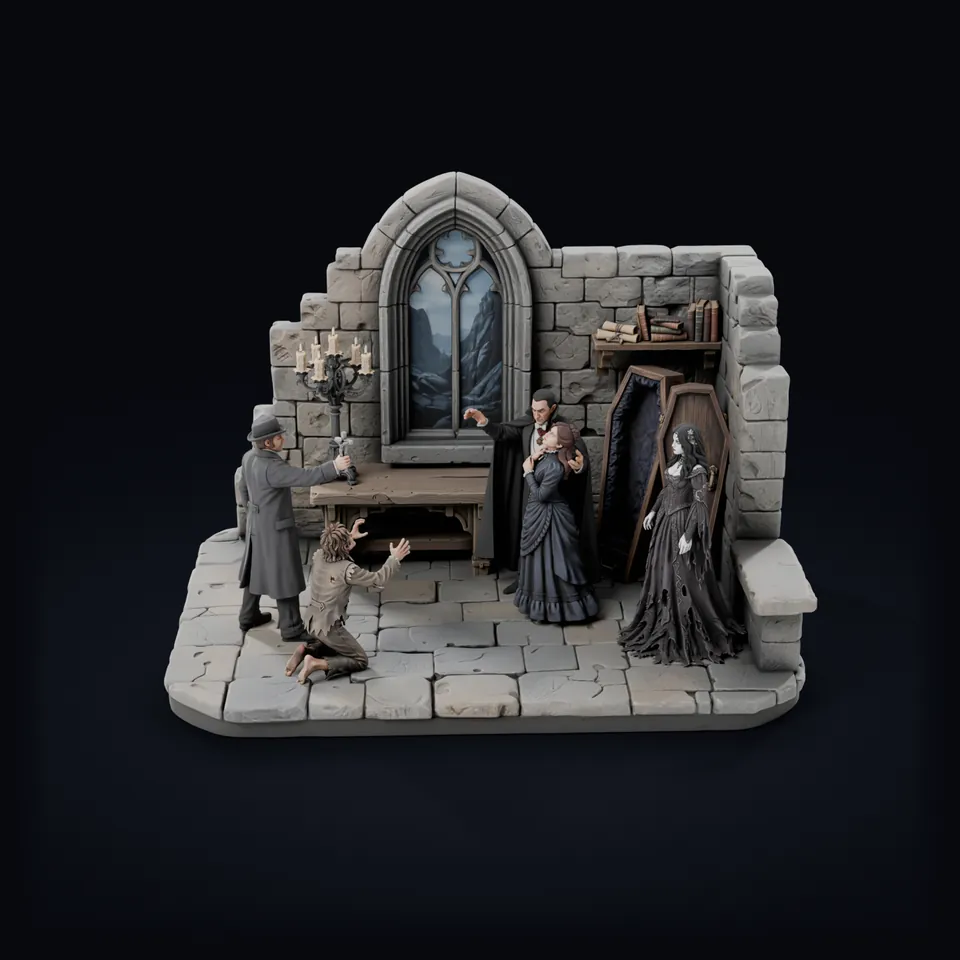
The Dracula Castle diorama from the front: the gothic window, a candelabra and a table, Count Dracula holding the woman in blue, the vampire bride by the open coffin, the hunter and the kneeling man
Render

Built and arranged

Dracula Castle

GothicHalloween10 parts

A ruined chapel in 10 parts: Count Dracula, a woman in blue, a vampire bride, a vampire hunter, a kneeling man, an open coffin, a candelabra, a table, a bookshelf and the castle set. Built with 2K colour textures and arranged on the Diorama Studio stage.

Turn it around
Master scene from Diorama Studio: villagers, musicians and a monkey gathered by a doorway on a miniature street base
Scene image

Master scene

Street gathering

HistoricalStreet scene

A master scene in Diorama Studio, the picture every scene starts from. Villagers, musicians and a monkey gather by a doorway on a small base. Read this scene turns a picture like this into a list of parts you can pick from.

Output files and review

Output formats

What you download from Diorama Studio, and what to check before you print.

Dracula_pack.zipExample export
  1. Count_Dracula.stlSTL
  2. Distressed_Woman.stlSTL
  3. Vampire_Hunter_with_Crucifix.stlSTL
  4. Kneeling_Man.stlSTL
  5. Vampire_Bride.stlSTL
  6. Open_Coffin.stlSTL
  7. Candelabra.stlSTL
  8. Wooden_Table.stlSTL
  9. Bookshelf_with_Books_and_Scrolls.stlSTL
  10. Castle_Interior_Set.stlSTL
  11. manifest.jsonList
The files are named after your models, and the ZIP after the name you give the pack.

Diorama pack (ZIP)

One STL file for every part on the stage.

  • Sized in millimetres, at the height you set
  • Position and rotation baked in, so the parts line up as arranged
  • A manifest.json that lists every part in the ZIP
  • Up to 24 models per pack

Single models

Every part is also saved as its own model in your Printara library. Open it in Printara Studio for single-model downloads such as GLB and OBJ.

Your saved scene

Master scenes and concept art stay with your saved scene in the Diorama Studio library, next to the models and packs you built from them.

STL stores shape, not colour. Colour textures show your scene in colour in the 3D view and in marketing images, and you paint the printed parts.

Before you print

  1. Open every file in your slicer and check its size in millimetres.
  2. Check thin parts, wall thickness and overhangs, and add supports.
  3. Print one part first before you print the whole scene.

Who it is for

Use cases

What a scene made of separate, printable parts is good for.

Close-up of the painted Dracula Castle figures: Count Dracula holding the woman in blue, the open coffin and its lid, and the vampire brideRender

Painting displays

Print every figure and prop as its own part and paint it before you assemble the scene; separate parts are easier to reach with a brush. Painting everything yourself? Pick No texture for plain geometry at the lowest build cost.

Seasonal scenes

A haunted crypt for Halloween, a snowy village square for Christmas. Describe the season and build a scene you can bring out every year.

Book nooks

Plan the scene that lives between your books. Set each part's height in millimetres, then use Measure and Distance to fit the arrangement to your insert.

For someone else

Gifts

Turn a favourite place, a shared hobby or a family story into a small scene. Start from a photo and rebuild it as miniatures.

Step by step

Tutorial: make your first diorama

Follow these steps the first time. The names match the buttons you see in Diorama Studio.

  1. Open Diorama Studio and sign in. You start on the Prompt tab.
  2. Type your scene under Scene prompt, for example: A ruined castle chapel at night: a count holding a woman in a blue gown by a gothic window, a vampire bride, a hunter raising a crucifix, a kneeling servant, an open coffin, a candelabra on a table and a shelf of books. Short on ideas? Type one word and press Write the scene for me.
  3. Optional: drop a picture under Start from an image. Choose Rebuild as miniatures to have it redrawn as a miniature scene, or This IS my diorama if the photo already shows one.
  4. Choose Fast or Ultra 4K, pick an Aspect ratio and press Generate master scene. Generate again until you like it.
  5. Press Read this scene. Tick the elements you want as separate parts (Select all ticks every one) and press Generate concepts.
  6. On the Concept board, open any card to preview it. Regenerate the ones you do not like, use Split when one image holds two things, such as a man and his cart, and remove what you do not need.
  7. Choose a texture: No texture, Standard 2K, Detailed 4K or Extreme 8K. Tick the concepts to build and press Build approved models.
  8. On the Scene tab, click a model to select it and use Move, Rotate and Scale (keys G, R, S). Turn on Solid floor so every model stands on the floor. Type a Height in millimetres and press Set; with nothing selected, Set all sizes every model. Check sizes with Measure and Distance (keys M, D).
  9. Press Save bundle to keep the arrangement, then Export ZIP in the bar under the stage.
  10. Load the STL files into your slicer, add supports and print. Selling the scene? On the Publish tab, create a Marketing photo and publish a listing.

FAQ

Frequently asked questions

What is an AI diorama generator?

An AI diorama generator turns a description or a picture into a miniature scene. In Printara Diorama Studio the result is not a single image: every character, prop and piece of setting you pick becomes a separate 3D model, which you arrange on one stage and download as STL files for 3D printing.

Do I get one model or separate parts?

Separate parts. Each element you build is its own model, and the exported ZIP holds one STL file for every part on the stage. You can print and paint each piece on its own, then assemble the scene.

What files do I download?

A ZIP with one STL file per part, plus a manifest.json that lists them. Every STL is in millimetres at the size you set, with its position and rotation from the stage baked in, so the parts line up as arranged. A pack holds up to 24 models, and each part is also in your Printara library for single-model downloads such as GLB and OBJ.

Can I start from a photo or my own artwork?

Yes. Drop a PNG, JPG or WebP picture into Start from an image. Rebuild as miniatures turns it into a miniature master scene, and anything you type becomes a list of changes. This IS my diorama uses a photo of a diorama you already have as the master scene, without generating a new image.

How do I size a scene for a book nook or a display base?

Work in millimetres on the stage. Select a model, type a Height and press Set, or size every model at once with Set all. Measure shows a part's width, depth and height, Distance measures between two points, and the exported STL files keep those sizes.

Do the colours come with the STL files?

No. STL stores shape only, so you paint the printed parts. Colour textures (Standard 2K, Detailed 4K or Extreme 8K) show the scene in colour in the 3D view and in marketing images. For a scene you plan to paint, No texture is the lowest-cost build.

Can I sell the dioramas I make?

Yes. Under Printara's Terms you keep ownership of the models you generate, and you give Printara a non-exclusive licence to display, distribute and market them, including posting them to external marketplaces. You are responsible for making sure a scene does not copy someone else's characters, trademarks or designs before you sell it. From the Publish tab you can create styled marketing images, have the listing text written for you, and publish the pack to the Printara marketplace with a paid creator plan, to Etsy with Plus or higher, or to CGTrader and Cults3D with Pro.

Do I need an account, and what does it cost?

Diorama Studio opens after you sign in, and a Printara account is free. Generating images and building 3D models use credits from a plan or a credit pack, and every paid button shows its credit cost before you press it. Write the scene for me, using a photo of your own diorama as the master scene, and exporting your own pack as a ZIP use no credits.

Build your first diorama.

Start with one sentence or one picture. Pick the parts, arrange the scene and download the STL files.

Printara is an AI-powered creative manufacturing platform for creating 3D models, dioramas, laser-cut designs, molds and printable products.