Printara turns a photo, image or text prompt into a 3D model you can inspect, size in millimetres and download as STL, 3MF and other files for 3D printing.
Your picture
Loading the model
Your picture
Drag to rotateSwipe to rotate
Print setup
Generate a 3D modelShow the model on its Printara presupports on the build plate, at 32 mm. Press again to go back to the model.
Free account. Generating uses credits, and you see the cost before you press.
Photo, image, views or text
STL in millimetres
Multi-colour 3MF
GLB, OBJ, FBX, USDZ
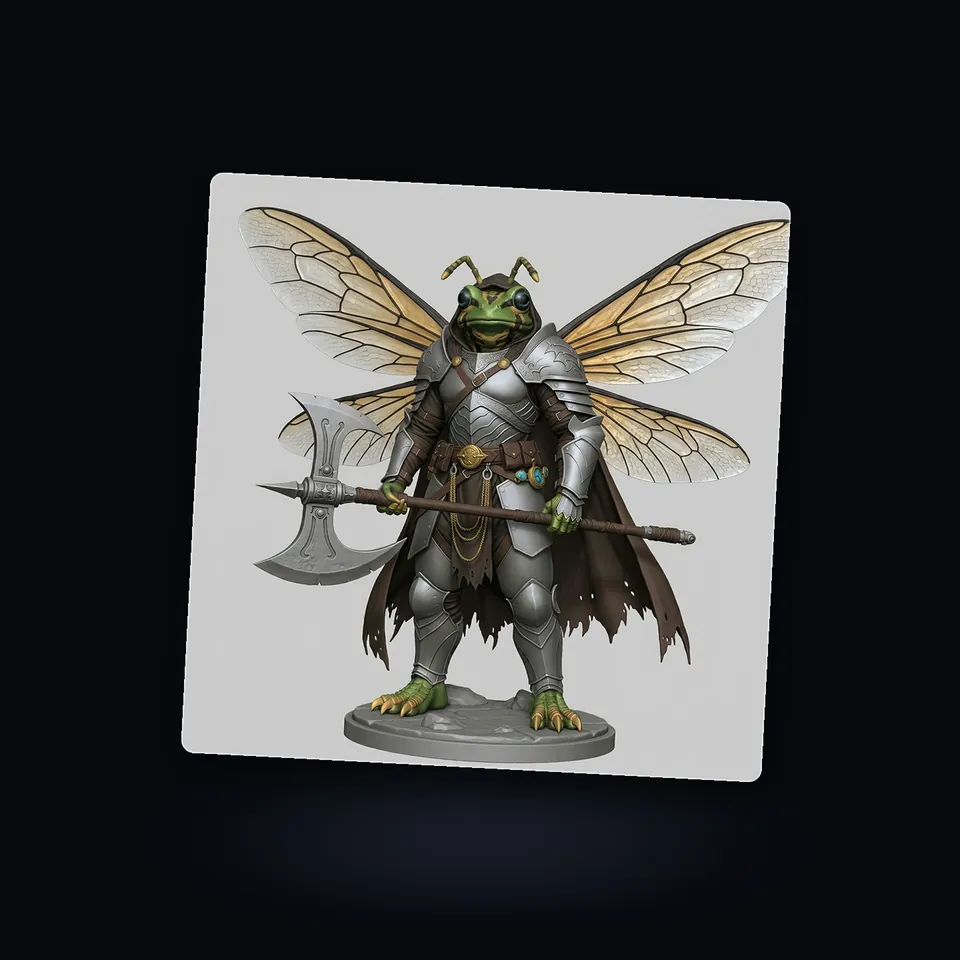
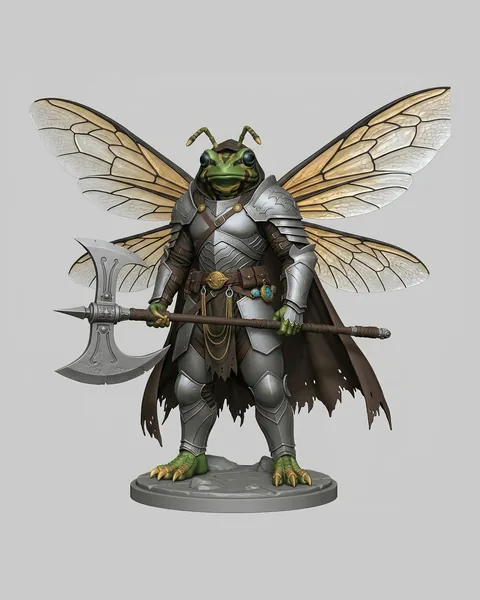
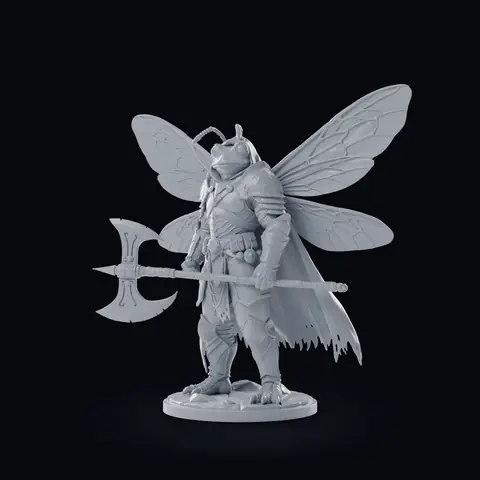
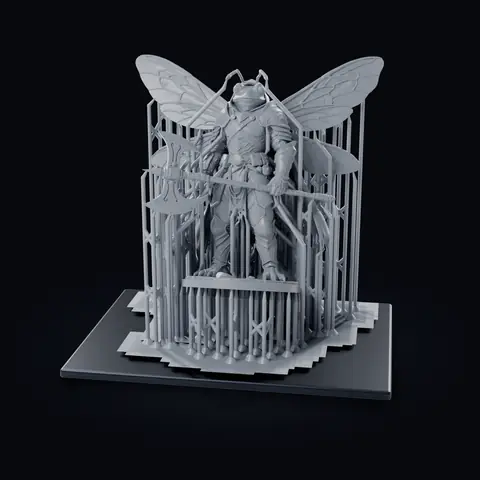
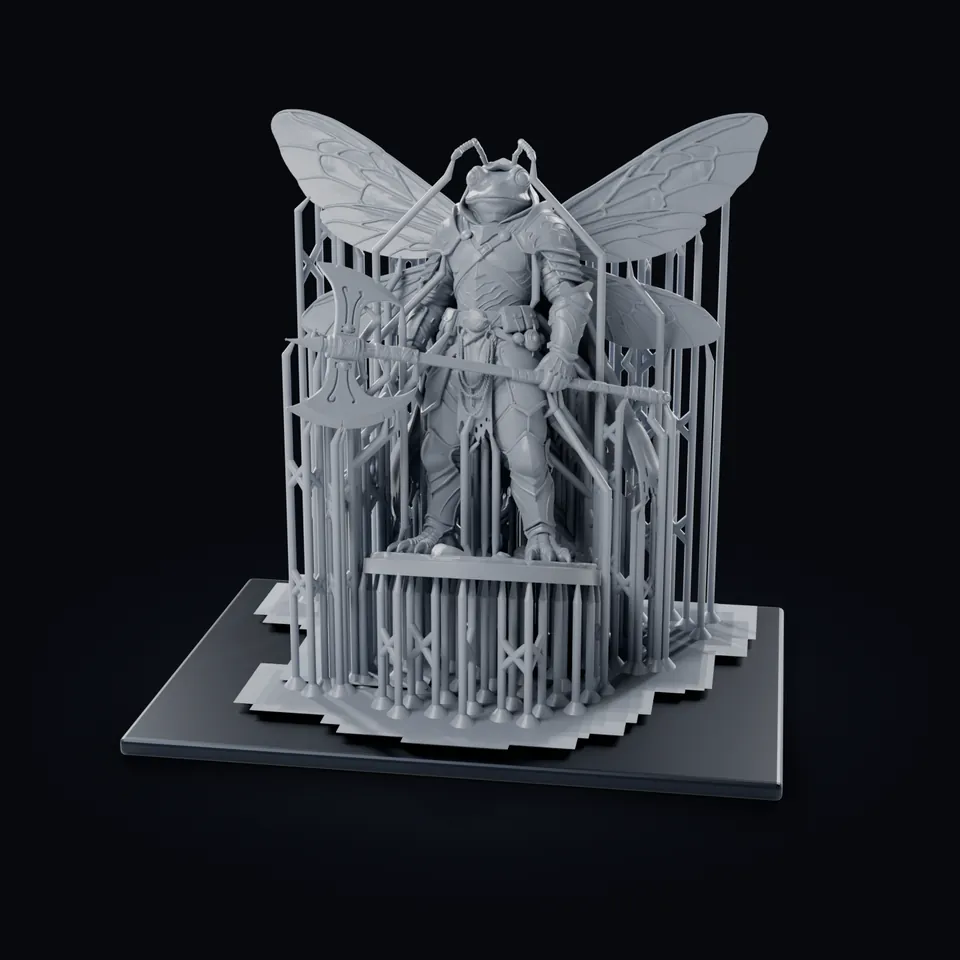
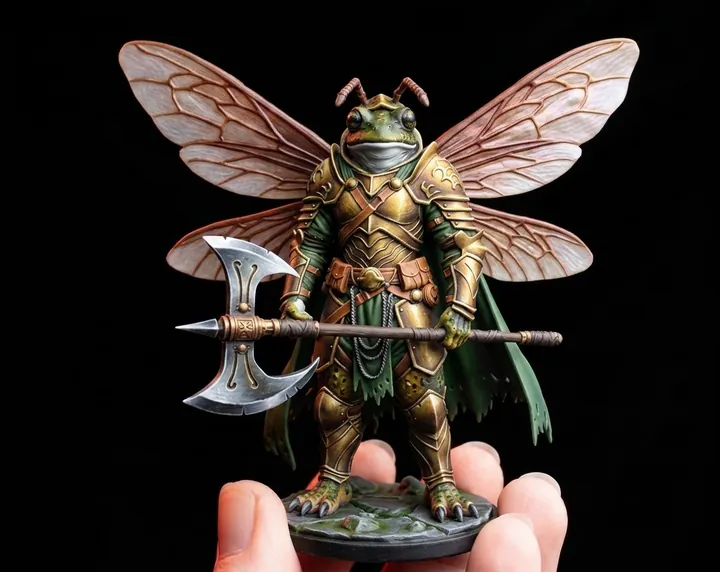
Armored frog-fly warrior, generated in Printara from one picture (see it on the marketplace). The print setup is the model on Printara presupports at 32 mm: 248 fine contact tips, 200 supports on the build plate, no raft.
From your picture to print
01Your picturePictureThe one picture the model was generated from
02Generated modelModelShape only (no colour), about 2 million triangles
03Presupported print filePrint fileExported at 32 mm, presupported by Printara
Armored frog-fly warrior, generated in Printara from one picture (see it on the marketplace). The print setup is the model on Printara presupports at 32 mm: 248 fine contact tips, 200 supports on the build plate, no raft.
One picture, one model
What you can create
One object at a time: figures and miniatures, busts, toys, props and terrain, decor and products. Every model below was generated in Printara from our own pictures (one picture or a multi-view set). Making a whole scene of separate models? Use the AI Diorama Generator.
Props and terrain
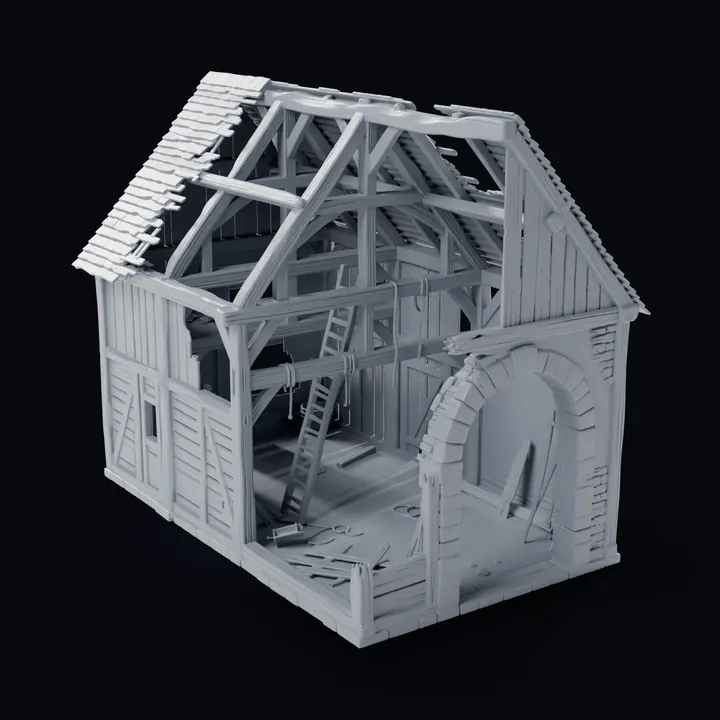
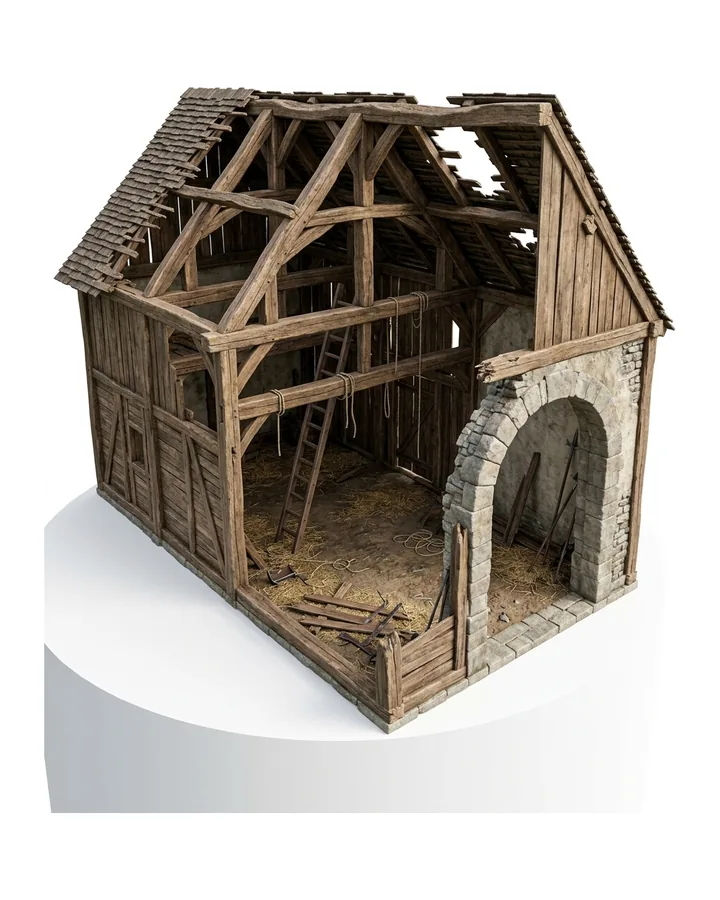
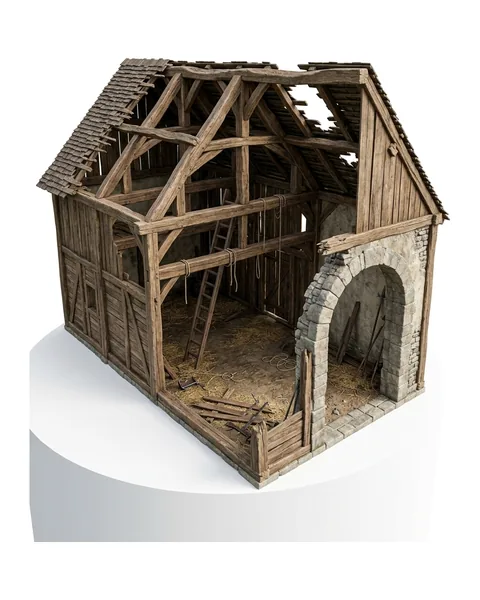
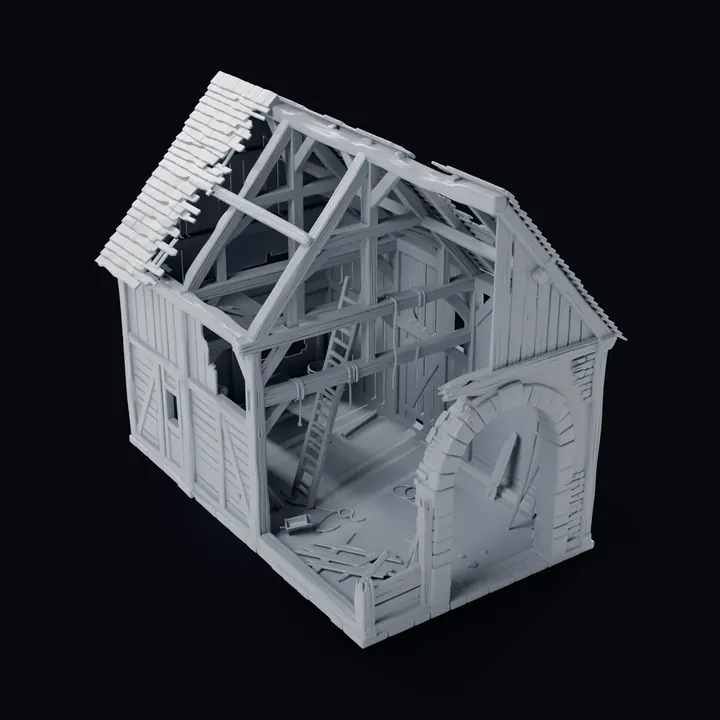
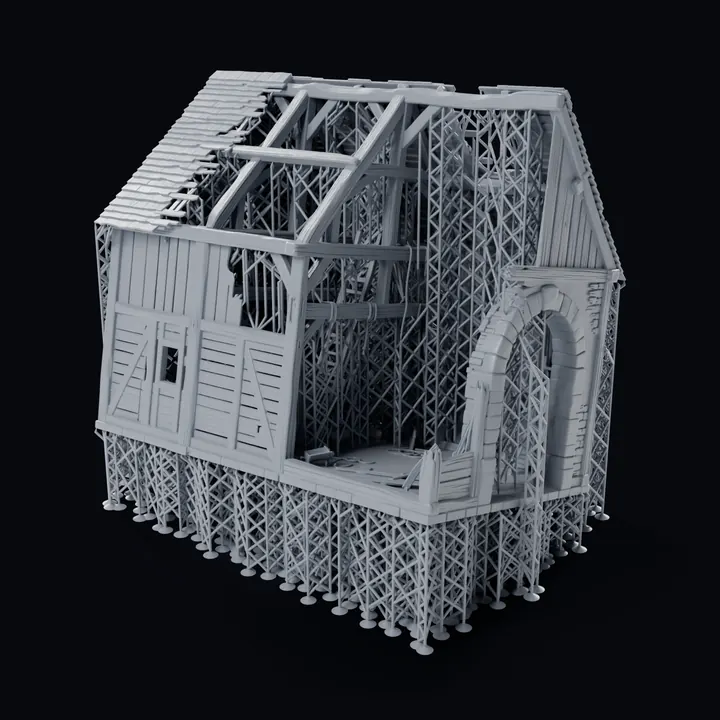
Elevated timber barn
One picture
Shape only (no colour)
Supported STL at 100 mm
Busts
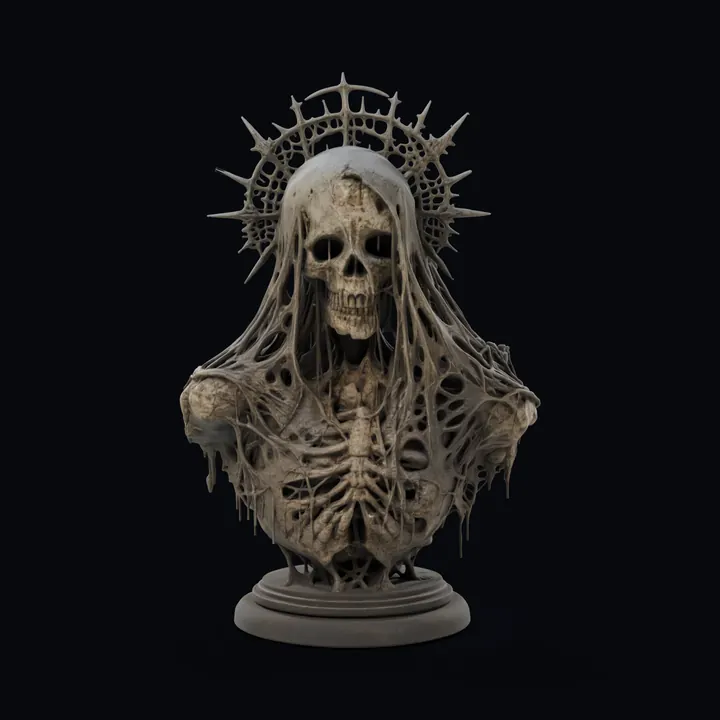
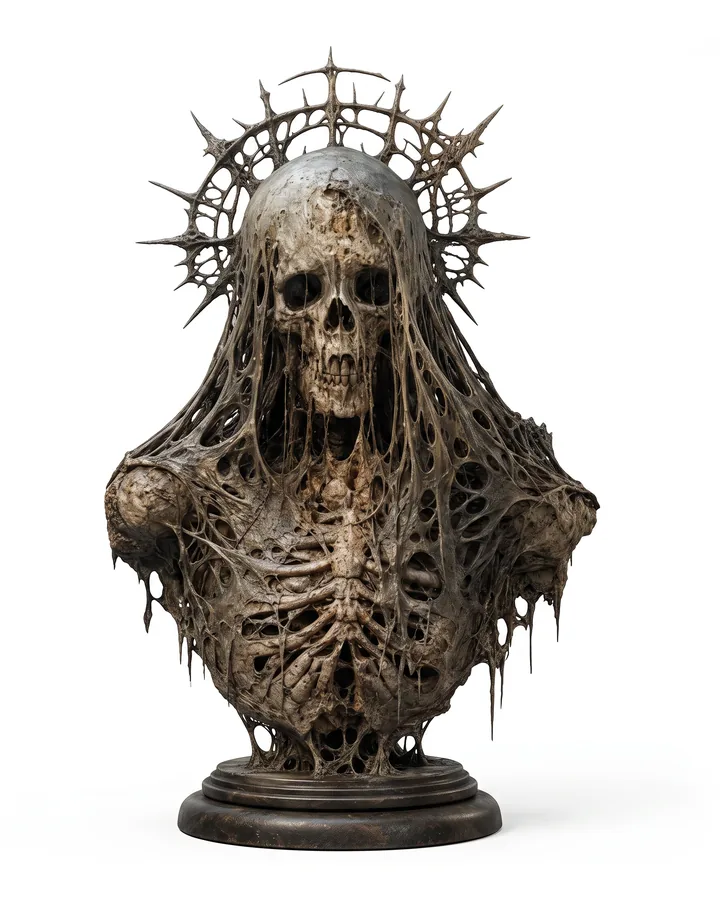
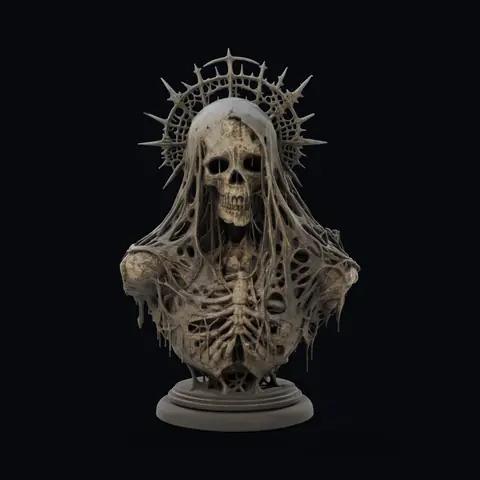
Skull saint bust
Multi-view
2K colour texture
Toys and collectibles
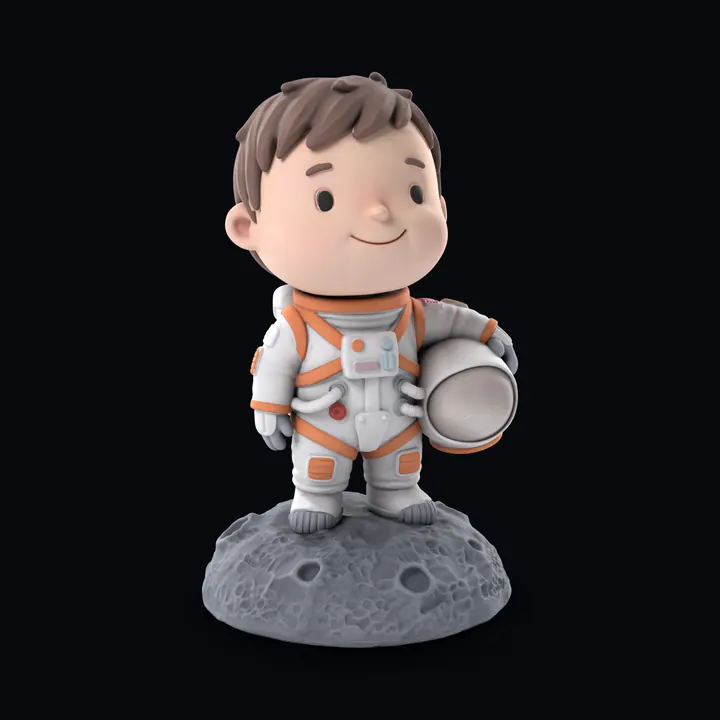
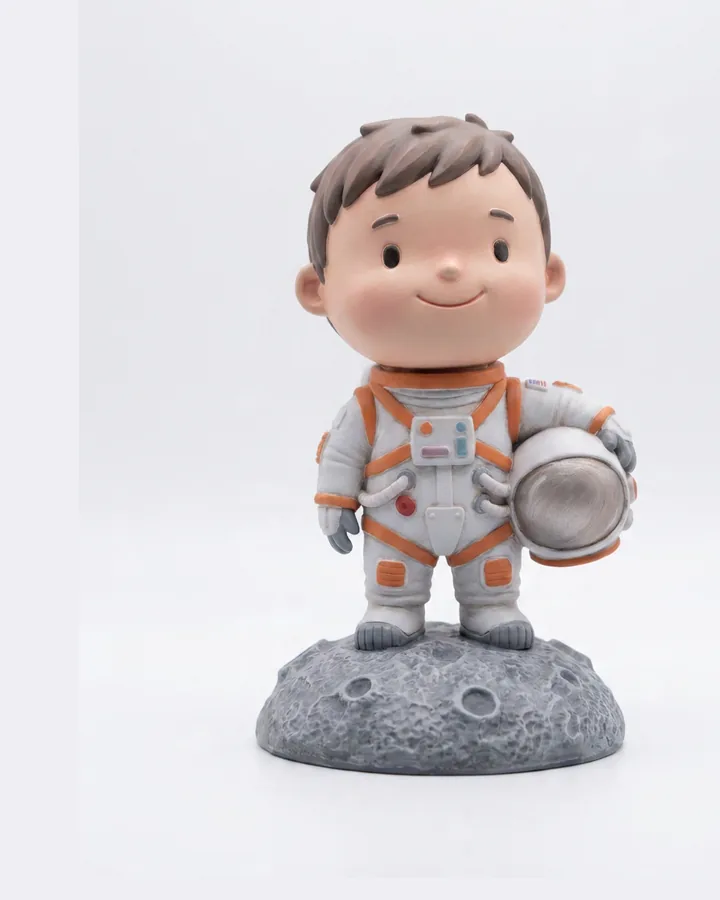
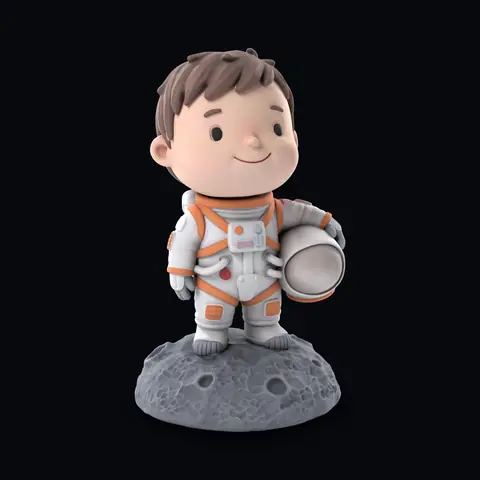
Chibi astronaut
One picture
Colour texture
Home products
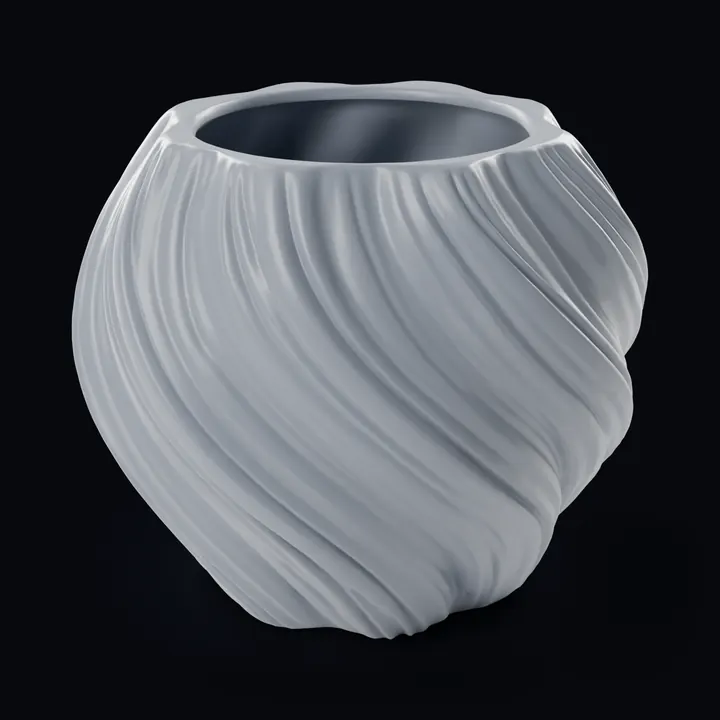
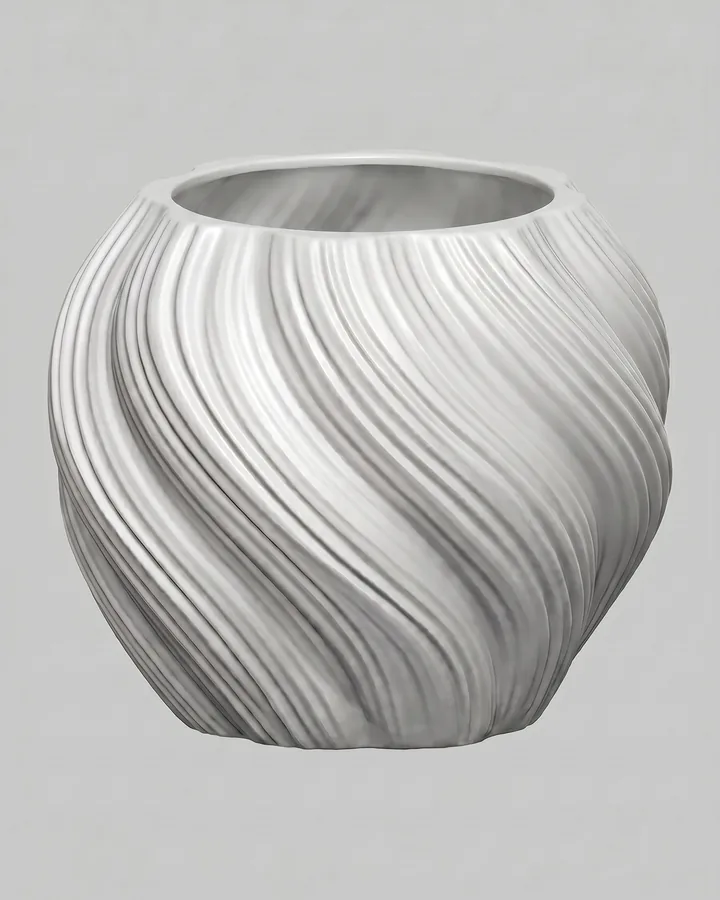
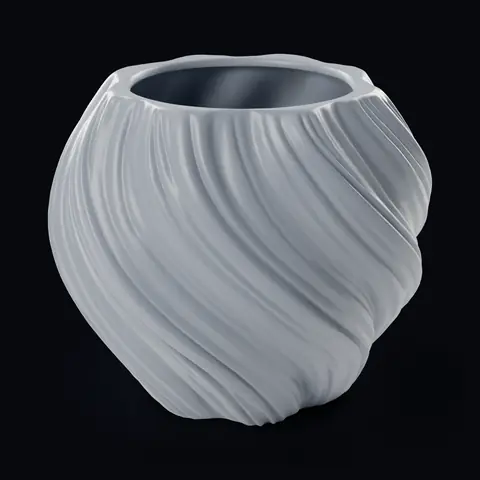
Spiral vase
One picture
Shape only (no colour)
Gifts and pets
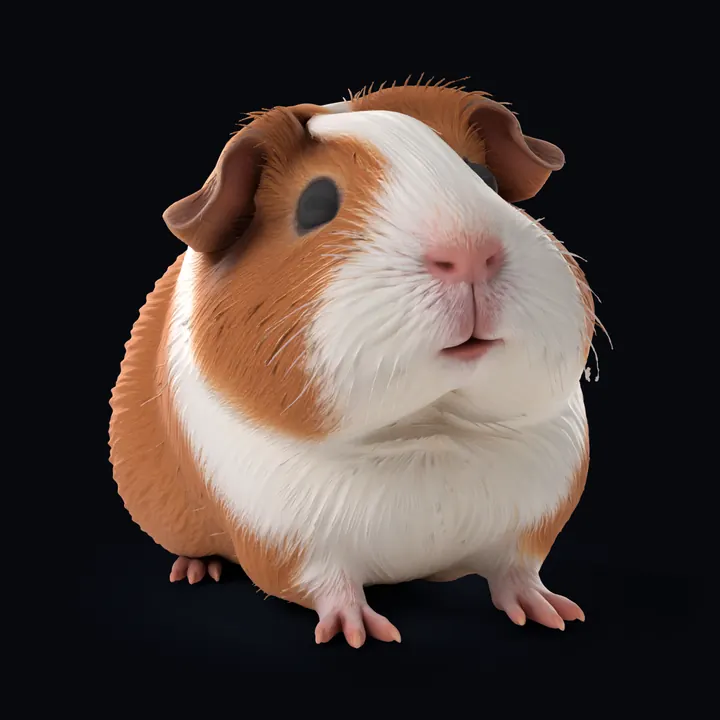
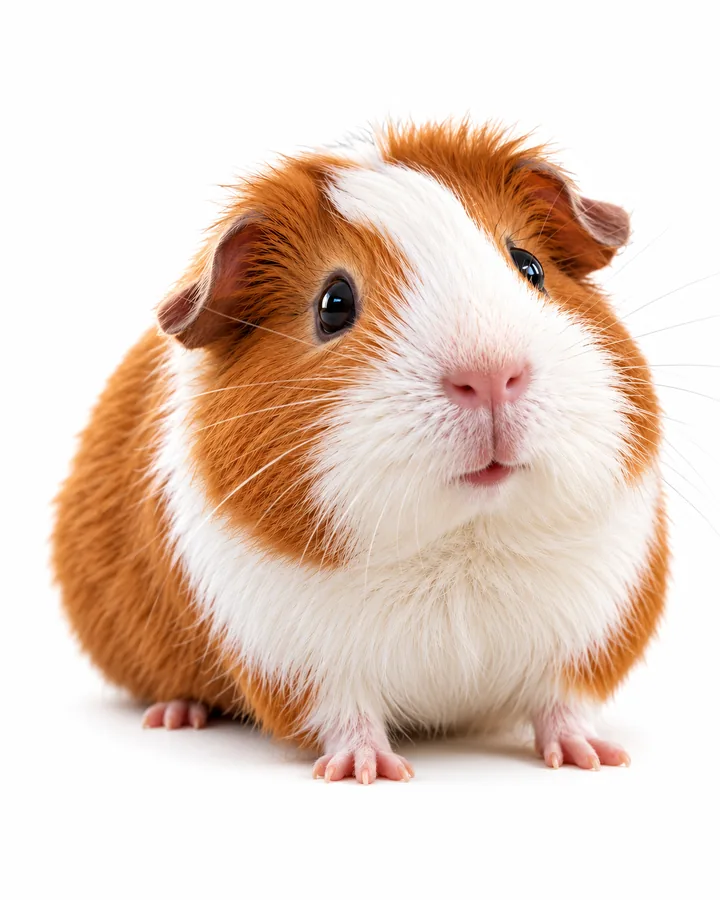
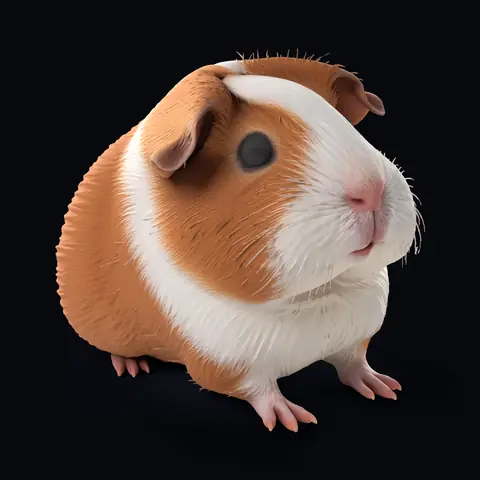
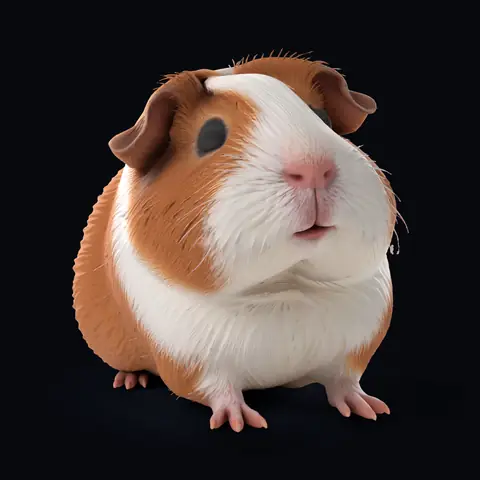
Guinea pig figurine
One picture
2K colour texture
3-colour 3MF
Seasonal decor
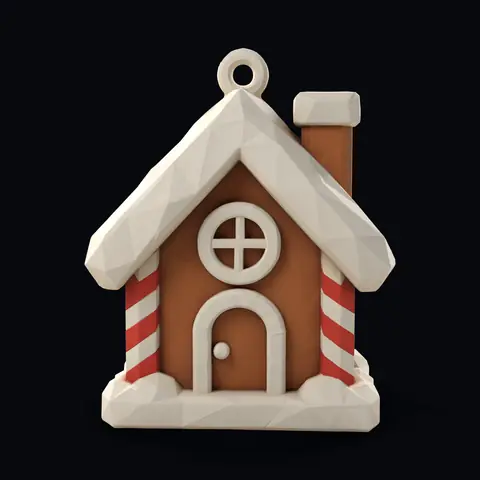
Gingerbread house ornament
One picture
2K colour texture
4-colour 3MF
Swipe for more models. Tap a picture to compare.
How it works
How the AI 3D generator works
Six steps from a photo or a sentence to a file on your print bed, shown in the Studio panels of the Printara Academy lesson.
01
Photo, image or text prompt
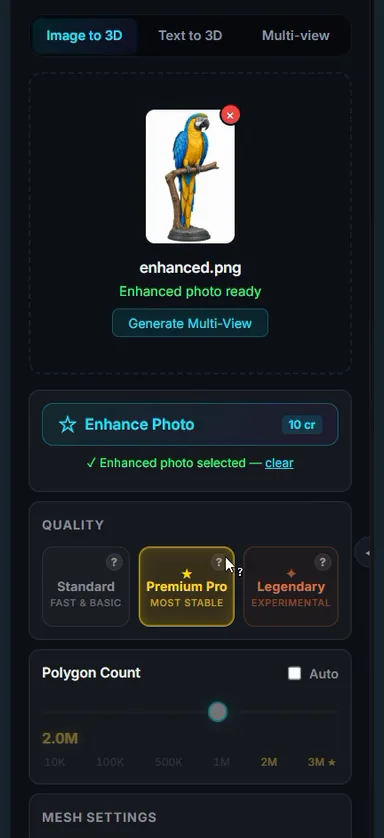
Drop in one photo or image (JPG, PNG or WebP, up to 10 MB), add several views of the same object with Multi-view, or describe it with Text to 3D. No picture yet? The Image tab makes a clean reference picture of one object from a photo or a sentence.
02
Generate
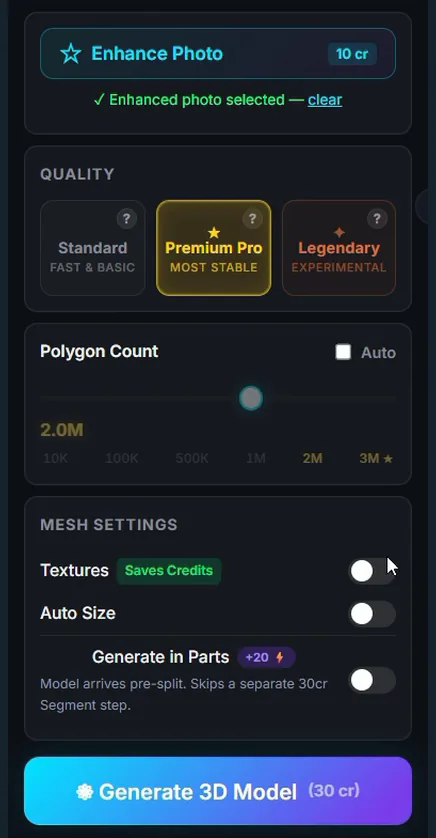
Pick a quality preset. Leave Textures off for shape only (no colour), or switch it on for colour in Standard 2K, Detailed 4K or Extreme 8K. Generate 3D Model shows its credit cost, and the model lands in your Library.
03
Inspect and edit
Turn the model in the 3D view: Matcap shows the shape, PBR the colours. Segment splits it into parts, Animate poses a character and Texture adds colour to a grey model.
04
Prepare
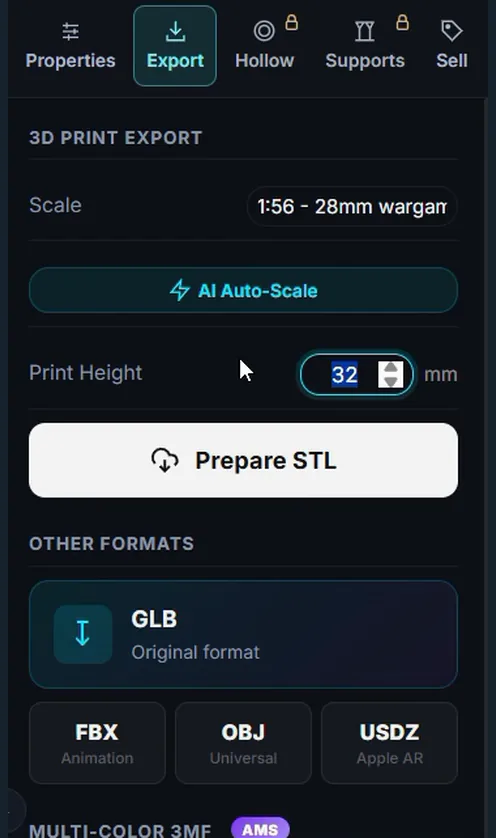
Type the Print Height in millimetres or pick a scale such as 28 mm wargame. For resin, Hollow hollows the model with drain holes and Supports adds supports at the size and tilt you choose, on paid plans.
05
Export
Prepare STL gives you the model at that height. Textured models also export as a Multi-Color 3MF with up to 16 filament colours, and every model as GLB, OBJ, FBX or USDZ.
06
Print or sell
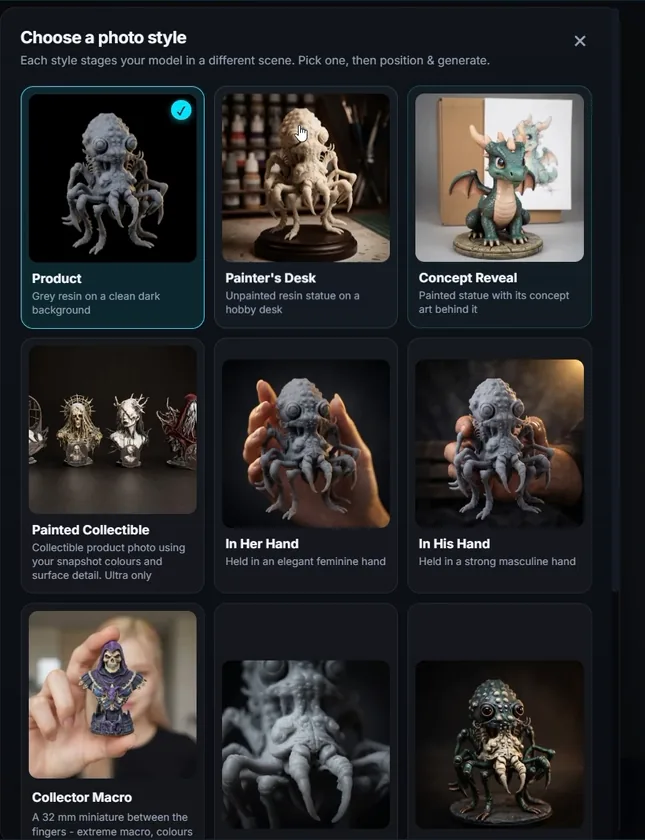
Open the file in your resin or FDM slicer, check its size and supports, and print. Selling it? AI Photo makes marketing photos and the Sell tab publishes the listing.
03 Inspect: measureMeasure between two points: select the model in your Library, press Open together, choose Distance (or press D) and click two points. The distance shows in millimetres.
Every paid button shows its credit cost before you press it. Exporting the models you generate and building a multi-colour 3MF use no credits.
Create your first 3D model in Printara Printara Academy, 4 min 19 s, with captions. Open the lesson page
Step by step
Tutorial: make your first 3D model
Open Printara Studio and sign in. The Generate tab opens on Image to 3D.
Drop in one clear picture of one object on a plain background, or describe it in Text to 3D.
Choose a quality preset and Textures, then press Generate 3D Model.
In Export, type the Print Height and press Prepare STL, or build a Multi-Color 3MF.
Slice the file, check thin parts and supports, and print.
Two models from the Studio, from the picture to the file you print. The pictures are the real inputs; the models and files are renders of the real ones.
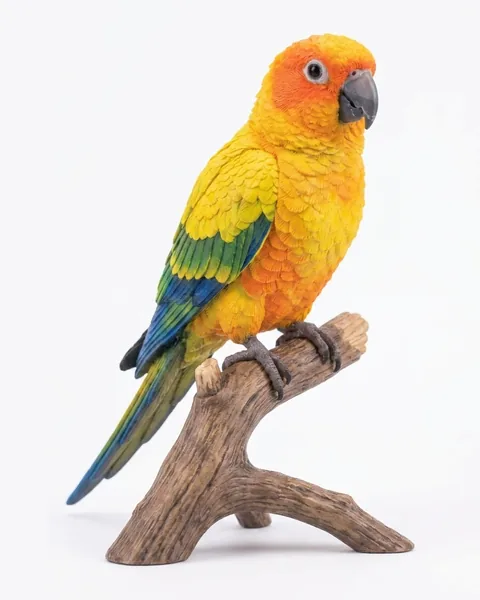
01Your picture
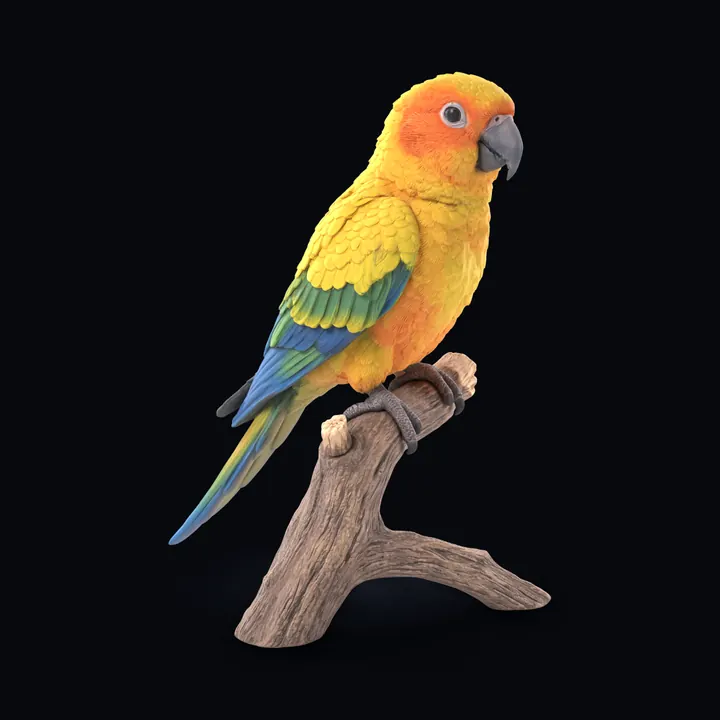
02Model, 8K colour texture
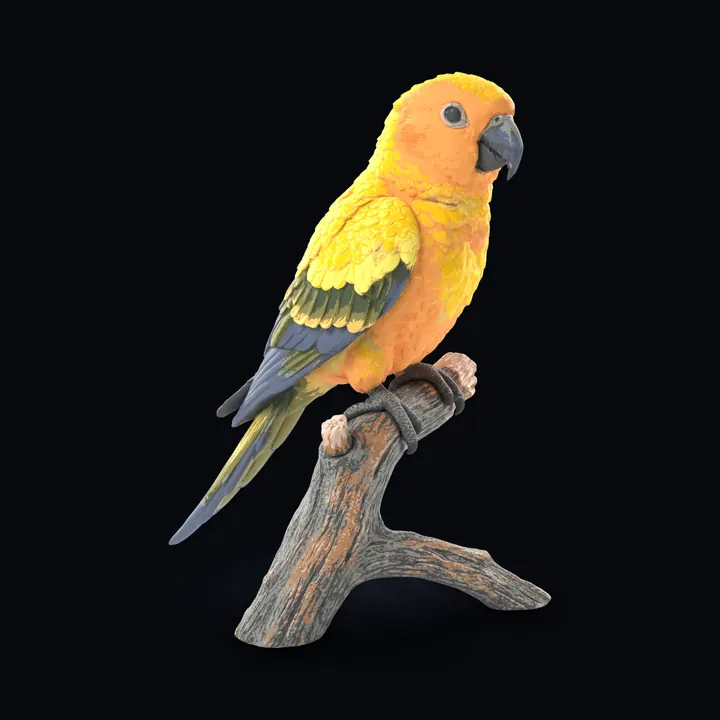
03Multi-colour 3MF
The 12 filament colours painted in the 3MF
#5B6579
#454749
#545454
#8E9089
#49533B
#847D48
#E4BD68
#D3B7A7
#FBE668
#FEC600
#AA7C56
#FAA256
Picture to multi-colour 3MF
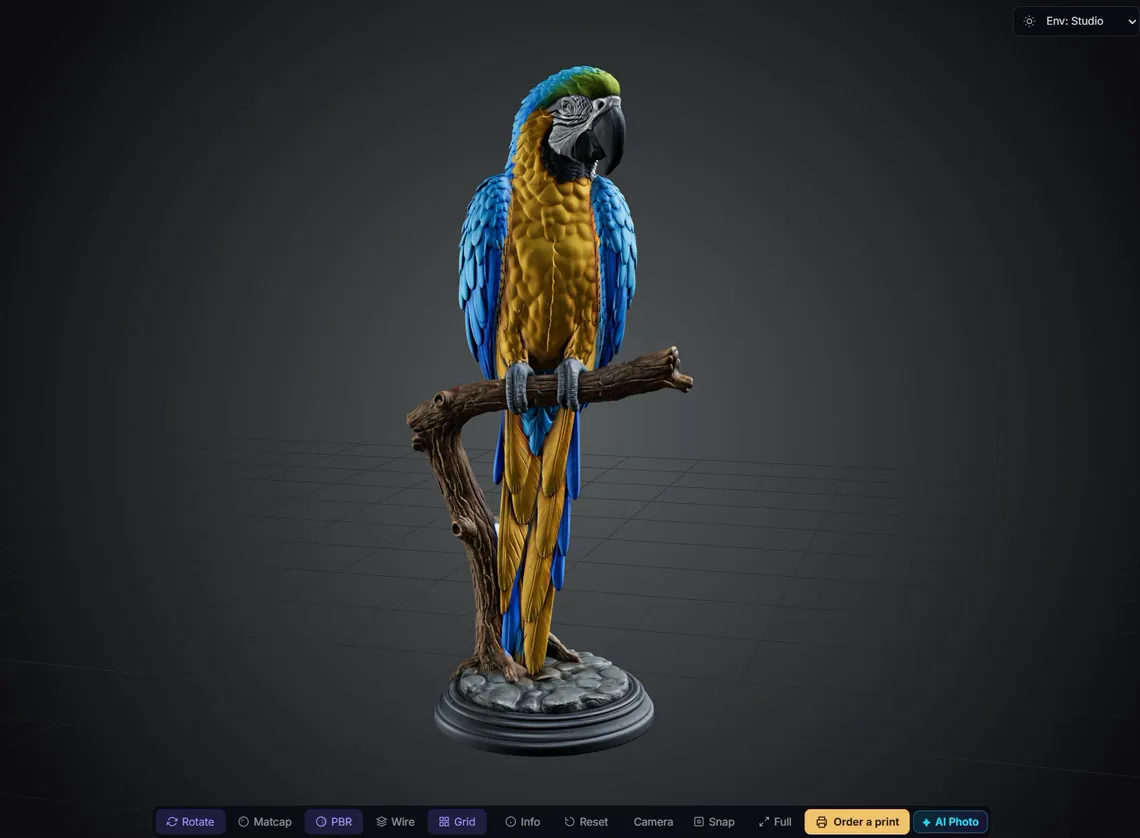
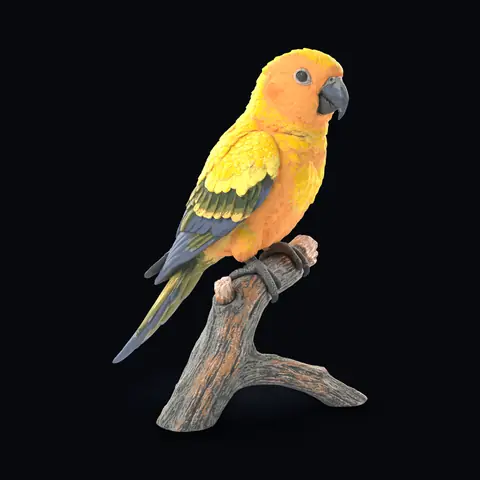
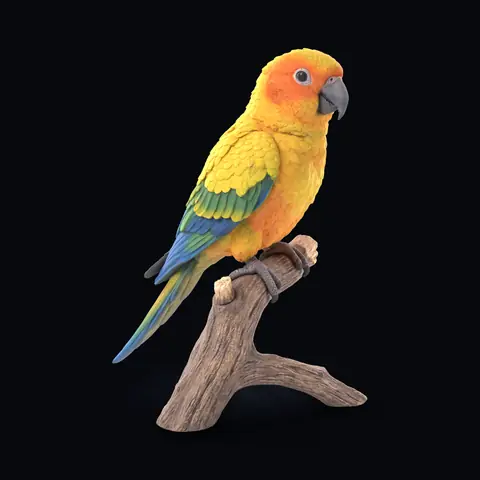
Sun conure parrot statue
DecorFull colour16-slot 3MF
Generated from one picture with Textures on at Extreme 8K. Printara then turned the texture into a multi-colour 3MF with 16 filament slots, 12 of them painted, for a multi-material FDM printer. The third image is rendered from that 3MF, every triangle in its filament colour.
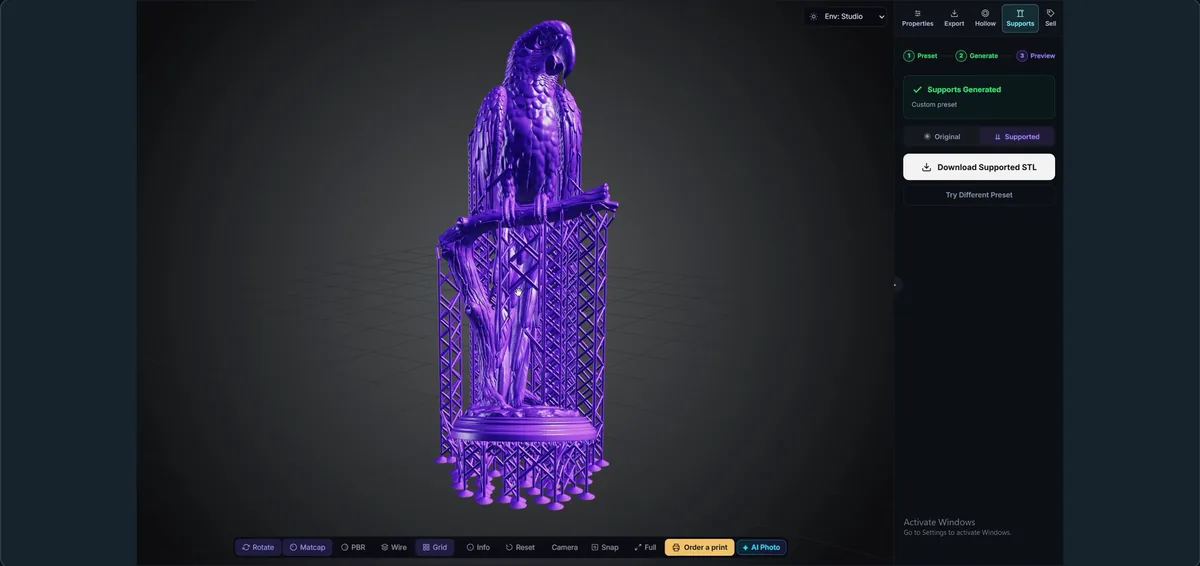
Generated from one picture as shape only, then exported at 100 mm and given resin supports in the Supports tab. The third image is rendered from that supported STL.
What you download from Printara Studio, and what to check before you print.
The Export tab, from the Academy lesson. You can always export the models you generate.
STLFor every slicer, at the Print Height you type (1 to 500 mm) or a scale preset
3MFMulti-colour, 1 to 16 filament colours
GLBThe original file, with its texture
OBJOpens in most 3D software
FBXFor animation tools
USDZFor Apple AR
STLSTL with supports: Supports tab, paid plans
Multi-colour 3MF
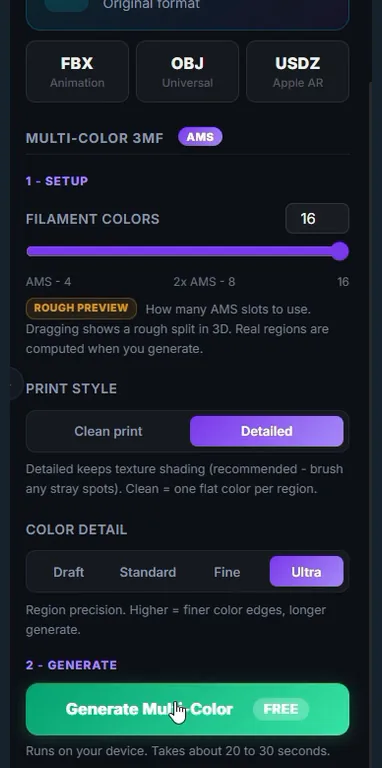
For models generated with a colour texture. Choose 1 to 16 filament colours, preview the colour regions, paint stray spots with a brush and download the 3MF for a multi-material FDM printer. The regions are computed on your own device.
Print preparation
On paid plans, Hollow hollows a model for resin with drain holes, and Supports adds resin supports at the size and tilt you choose, then gives you the supported STL with Download Supported STL.
STL stores shape, not colour. Paint the print yourself, or generate with a colour texture and print the multi-colour 3MF.
Before you print
Open the file in your slicer and check its size in millimetres.
Check thin parts such as antennae, blades and wing edges, and the wall thickness.
Check the orientation and supports, then print a small test first.
Who it is for
Use cases
What a picture that turns into a printable model is good for.
Resin miniatures and tabletop
Export at 28 or 32 mm with a scale preset, hollow larger pieces, add supports and check the supported STL in your slicer before you print.
The image is a render of the frog-fly warrior on its Printara presupports at 32 mm.
Multi-colour FDM prints
Generate with a colour texture, then build a 3MF with up to 16 filament colours for a multi-material printer.
An AI 3D generator turns a photo, an image or a description into a 3D model. In Printara Studio the model is more than a preview: you turn it in a 3D view, split it into parts if you need to, set its print height in millimetres and download a file for your resin or FDM printer, such as an STL or a multi-colour 3MF. Our comparison of the best AI 3D model generators of 2026 puts Printara next to the other tools.
Can I turn a photo into an STL file?
Yes. In Image to 3D, upload one photo or image (JPG, PNG or WebP, up to 10 MB) and press Generate 3D Model. When the model is ready, open the Export tab, type the Print Height in millimetres and press Prepare STL. A clear photo of one object on a plain background works best.
Can I start from a photo, a drawing or a text prompt?
Yes. Image to 3D takes one JPG, PNG or WebP picture up to 10 MB. Multi-view takes a front picture plus left, right and back views that you upload or generate. Text to 3D starts from a written description and shows a concept picture before the model is built. The Image tab can also turn a photo or a sentence into a clean, 3D-ready picture of one object first.
Which file formats can I download?
STL for printing, prepared at the height you type in millimetres. GLB, the original format, and OBJ, FBX and USDZ. Models generated with a colour texture also export as a multi-colour 3MF with 1 to 16 filament colours. You can always export the models you generate yourself, and exporting them uses no credits.
Is a generated model ready to print?
It is a 3D model you can export as an STL at a real size and open in your slicer. Check thin parts such as antennae, wings and blades, and plan the orientation and supports. On a paid plan the Hollow tab hollows a model for resin with drain holes, and the Supports tab adds resin supports and gives you a supported STL. The frog-fly warrior on this page stands on the presupports Printara made for it at 32 mm. You can also add supports in your own slicer.
Can I print a model in several colours?
Yes, when you generate it with a colour texture. In the Export tab, Multi-Color 3MF splits the texture into 1 to 16 filament colours for a multi-material FDM printer. The colour regions are computed on your own device at no credit cost, you can paint stray spots with a brush, and your edits go into the 3MF you download.
How do I set the size of my print?
Type the Print Height in millimetres, from 1 to 500 mm, then press Prepare STL. Or pick a scale preset such as 1:56 for 28 mm wargames, 1:48 for 36 mm heroic figures or 1:10 for a 175 mm bust, and AI Auto-Scale suggests a height for that scale from what the model shows. The frog-fly warrior on this page was exported at 32 mm.
How many credits does a model cost?
A model from a photo, an image or several views costs 30 credits as shape only, and 50, 75 or 100 credits with a Standard 2K, Detailed 4K or Extreme 8K colour texture. Every paid button shows its cost before you press it, so you also see the price of Text to 3D and of the optional steps there. Exporting your own models and building a multi-colour 3MF use no credits.
Can I sell the models I make?
Yes. Under Printara's Terms you keep ownership of the models you generate, and you give Printara a non-exclusive licence to display, distribute and market them, including posting them to external marketplaces. You are responsible for making sure a model does not copy someone else's characters, trademarks or designs before you sell it. AI Photo makes marketing photos of your model, and from the Sell tab you can have the listing written for you and publish it to the Printara marketplace with a paid creator plan, to Etsy with Plus or higher, or to CGTrader and Cults3D with Pro.
Do I need an account, and what does it cost?
Printara Studio opens after you sign in, and a Printara account is free. Generating 3D models uses credits from a plan or a credit pack, and every paid button shows its credit cost before you press it. Exporting your own models and building a multi-colour 3MF use no credits. Hollow and Supports need a paid plan.
Make your first 3D model.
Start with one photo, one image or one sentence. Check the model, set its size in millimetres and download the file for your printer.