Printara Studio

AI Laser Cut Generator

Describe an object, add photos if you like, and Printara designs it as flat parts nested on your sheet size, with SVG and DXF cutting files for every sheet.

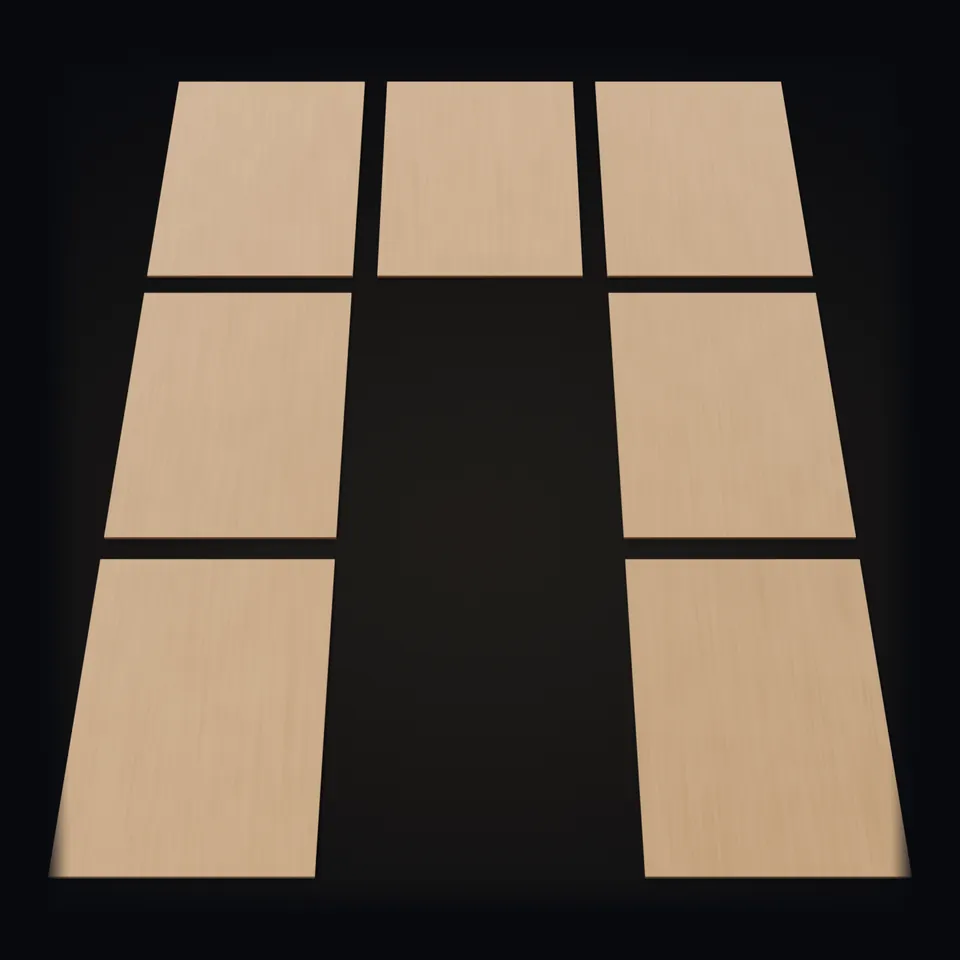
The seven 300 × 200 mm plywood sheets of the Gothic jewelry box before cutting, with its text brief on them

Drag to rotateSwipe to rotate

Design a laser-cut kit
Lay the box flat: its 25 parts go back into the seven cutting sheets they are cut from. Press again to assemble it.Slide the latch key out and open the lid on its wooden hinges. Press again to close it.

Free account. In Sculpt, choose Laser cut and get a free quote: it shows the credits before you build.

  • Text brief or photos
  • SVG and DXF per sheet
  • Your sheet, 0.5 to 25 mm stock
  • STL, 3MF, GLB, parts ZIP

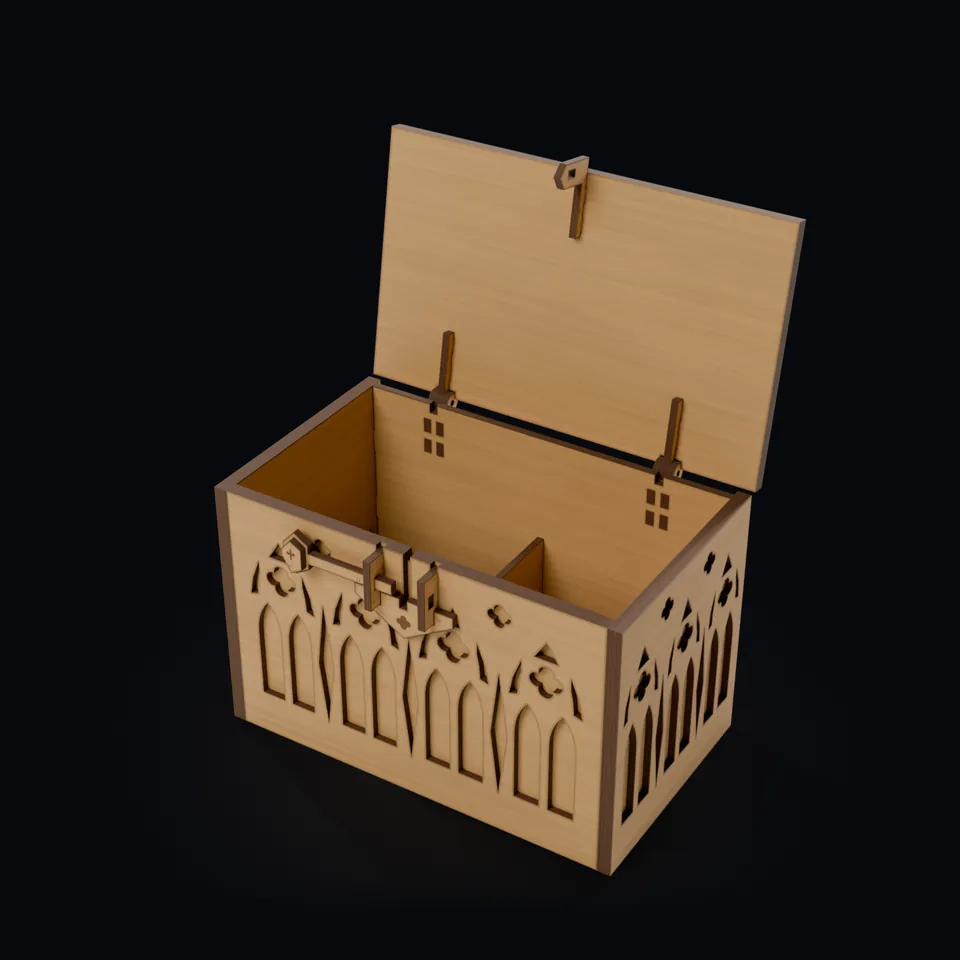
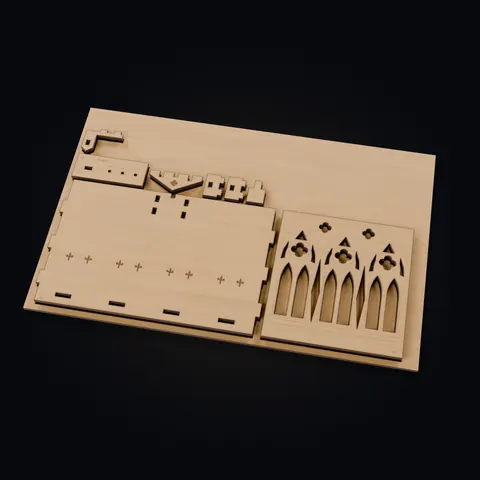
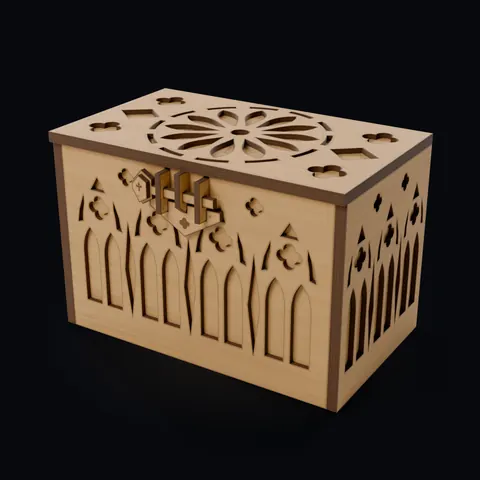
Gothic jewelry box, made in Printara from a text brief only: 27 parts on 7 sheets of 3 mm plywood. The images are renders of its real files in a birch preview; it has not been cut yet.

From a text brief to a kit

  1. 01Text briefBriefWords only, no picture
  2. 02Cutting sheetsSheets7 sheets, 300 × 200 mm, 3 mm
  3. 03Assembled boxBox27 parts, 180 × 120 × 120 mm
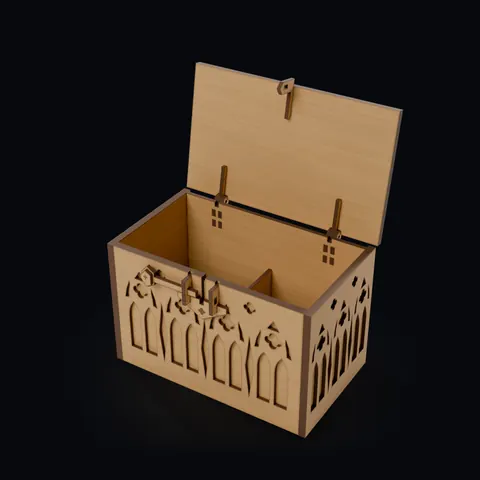
  4. 04Lid openLidWooden hinges, opening checked in 3D to 100°

Gothic jewelry box, made in Printara from a text brief only: 27 parts on 7 sheets of 3 mm plywood. The images are renders of its real files in a birch preview; it has not been cut yet.

The text brief of the Gothic jewelry box, in excerpt: Gothic jewelry box, laser cut. Final size 18 × 12 × 12 cm, 3 mm plywood or MDF, flat laser-cut panels with tab-and-slot assembly, a flat layered lid with a large Gothic rose-window design, removable flat dividers, wooden hinges on a metal pin and a layered Gothic latch.

Real examples, made in Printara

What you can create

Boxes like the one above, book nooks, one-piece signs and kits with printable paper decals. Each row shows a real kit from its input to a cutting sheet and the assembled model. Every kit in these rows was made in Printara from a written brief or a picture made in Printara; the sheets and kits are renders of their real laser cut files.

Text brief

MEDIEVAL FANTASY ALLEY BOOK NOOK

LASER CUT

  • Final size: 25 × 12 × 20 cm (H × W × D)
  • Material: 3 mm plywood or MDF
  • Laser cut: Gothic front arch, medieval houses, … bridge, castle …
  • Engraving: cobblestones, stone blocks, timber beams, roof shingles …

Excerpt of the real brief.
01Text brief
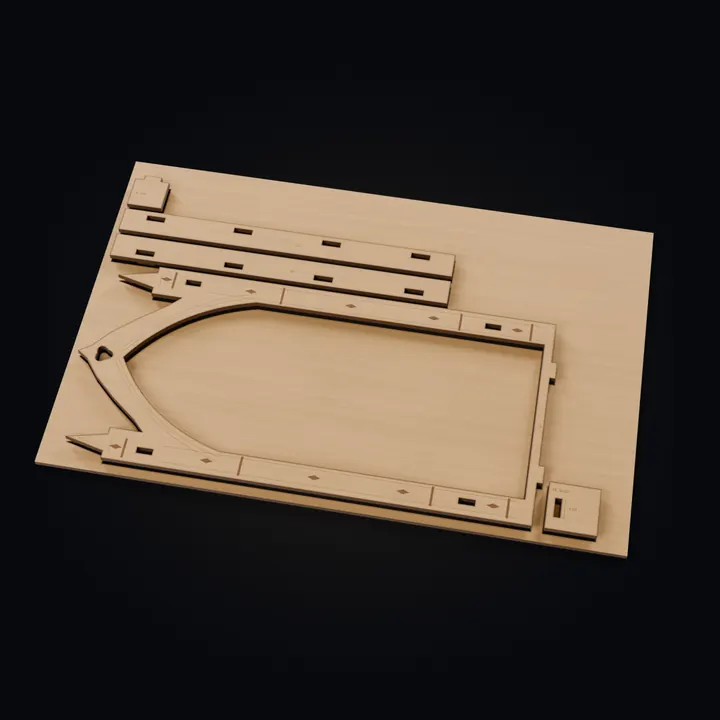
A cutting sheet of the medieval alley book nook in plywood, its parts pressed up out of the sheet
02One of its 15 cutting sheets
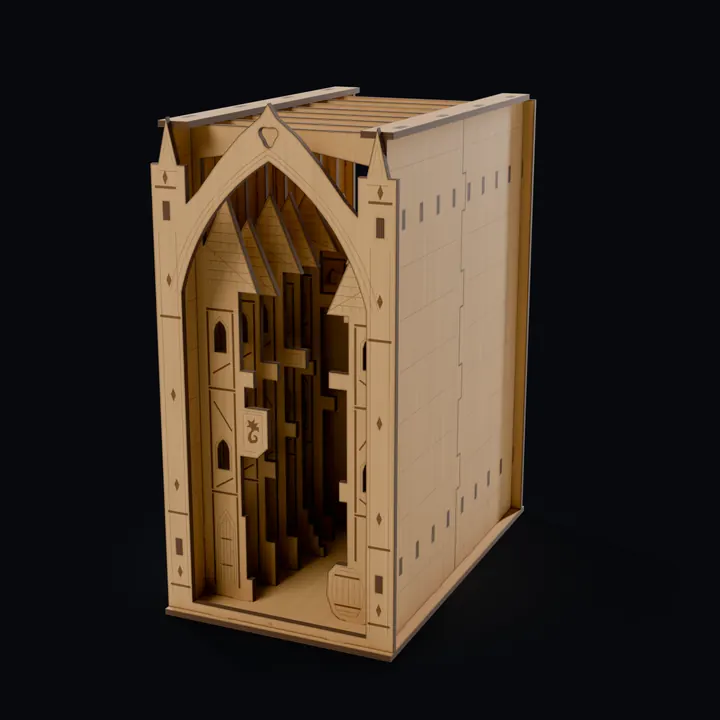
The medieval alley book nook made in Printara: a plywood book nook with a Gothic arch and layered medieval houses inside
03Assembled, 250 mm tall

Book nooks and layered scenes

Medieval alley book nook

19 parts, 15 sheets120 × 200 × 250 mmCut, score, engraveTwo fit-test coupons

Written as an English brief for a 25 cm book nook: a Gothic front arch, houses, a bridge and a castle, cut and engraved on 300 × 200 mm sheets. Before quoting, Printara asked about a tea light compartment and the sheet size. It then built 19 parts on 15 sheets, two of them fit-test coupons, with cut, score and fill-engrave operations.

See it on the marketplace
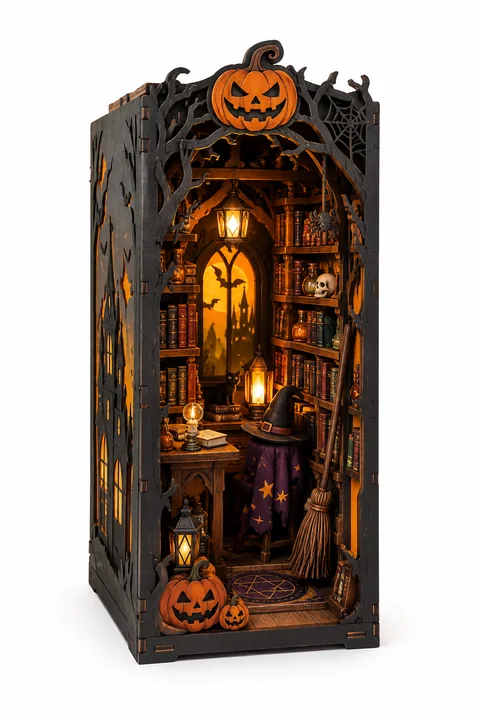
The picture the magical book nook was made from, created in the Printara Image tab: a dark wooden book nook with a jack-o'-lantern crest, shelves of books, a witch's hat and a broom
01Picture made in Printara
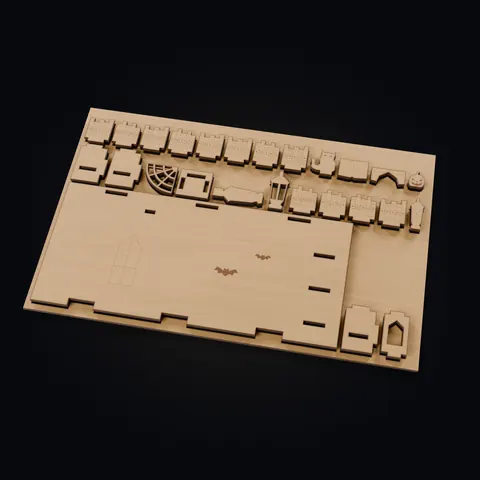
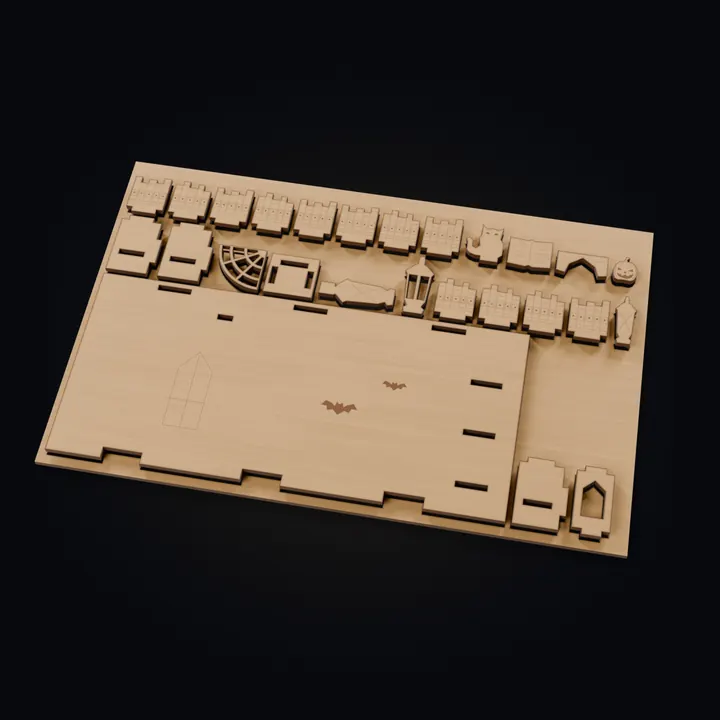
A cutting sheet of the magical book nook in plywood, with many small shelf and book parts pressed up out of the sheet
02One of its 8 cutting sheets
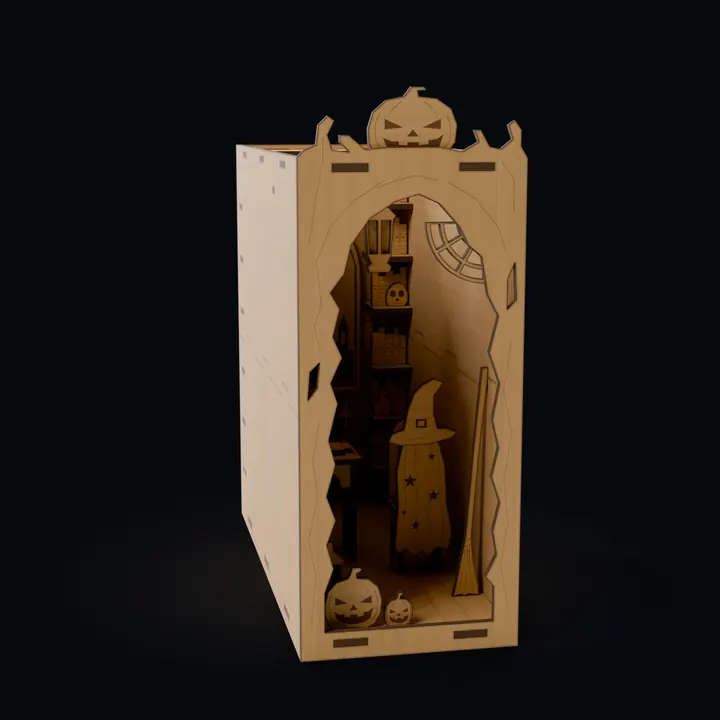
The magical book nook made in Printara, seen from the front left like its picture: a tall plywood book nook with a pumpkin crest, bookshelves, an arched window and a desk inside, before the paper decals
03Assembled, before the paper decals

Paper-decal kits

Magical book nook with paper decals

64 parts, 8 sheets100 × 240 × 250 mmPaper decal PDF

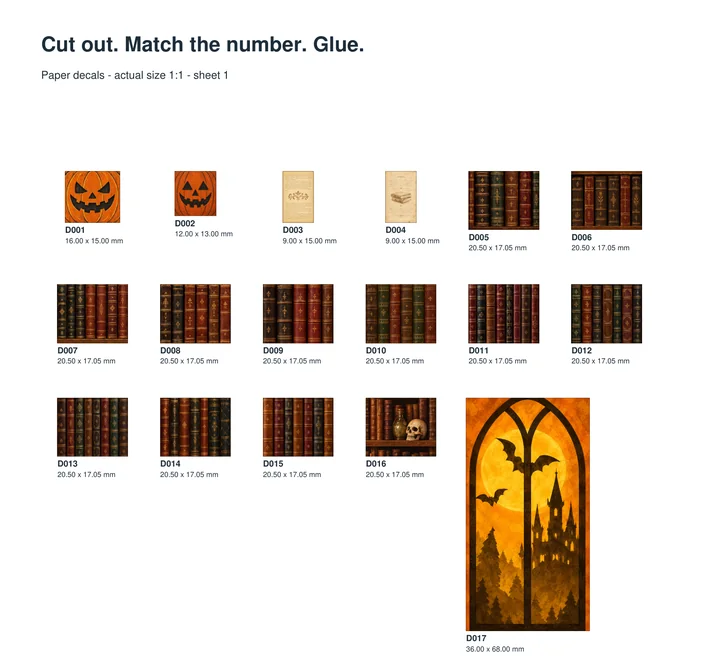
Started from a picture made in the Printara Image tab and a short brief in Slovak, translated: "make me a book nook exactly like the photo, and prepare it for the PDF stickers", 100 × 240 × 250 mm. Printara built 64 parts on 8 sheets, and a 20-page paper decal PDF: 18 decals at actual size and maps that show where each one goes. The render shows the plain plywood kit before the decals go on.

Page 2 of the paper decal PDF of the magical book nook: numbered decals of pumpkins, book spines and an arched window at actual size
Paper decal PDFPage 2 of 20: decals at actual size on A4, each with its number and size. Print at 100 %, cut out, match the number, glue.
See it on the marketplace
Text brief

DOOR HANGER DECORATION

TRANSLATED FROM CZECH

  • Construction: 1 layer, 3 mm plywood / MDF
  • Design: the whole motif cut from one piece of material
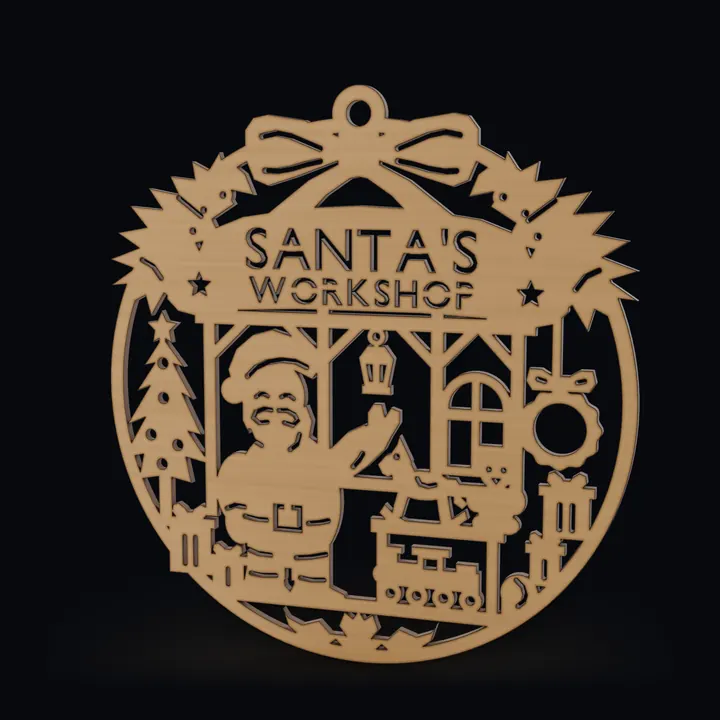
  • Text: SANTA'S WORKSHOP
  • Hanging: a hole at the top for a string, ribbon or hook

Excerpt of the real brief, translated.

01Text brief, translated
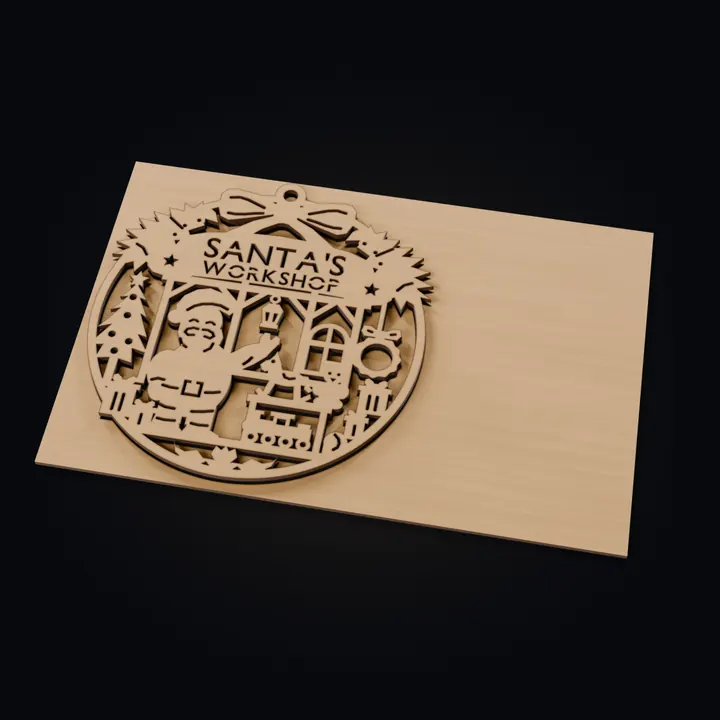
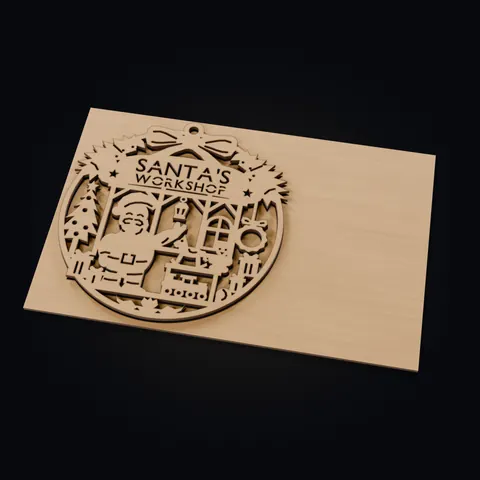
The door hanger nested on its 300 × 200 mm cutting sheet in plywood, the sign pressed up out of the sheet
02Its cutting sheet
The Santa's workshop door hanger made in Printara: a round one-piece plywood sign with a bow, a Christmas tree, Santa at a workbench and the words Santa's Workshop
03The sign, 190 mm tall

Signs and one-piece plaques

Santa's workshop door hanger

1 part, details connected180 × 190 mm3 mmNo glued layers

Written as a short brief in Czech, translated: a door decoration cut from one piece of 3 mm plywood or MDF, every inner detail connected so nothing falls out, the words SANTA'S WORKSHOP and a hole at the top for a ribbon. Before quoting, Printara asked whether to fit it into 190 × 190 mm or use a bigger sheet; the answer was 190 mm. It built one connected part, 180 × 190 mm, nested on a 300 × 200 mm sheet.

Also made in Printara: lanterns for LED candles, a dollhouse, coaster sets with a holder and layered ornaments. If you can describe it as flat parts that slot or glue together, you can ask for a free quote.

How it works

How the AI laser cut generator works

Six steps from a sentence to a kit on your laser bed, shown in the Studio panels of the Printara Academy lesson and in the real cut file of the box above.

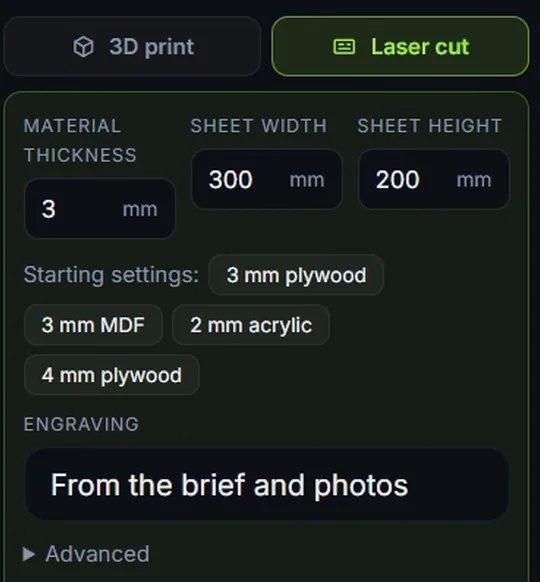
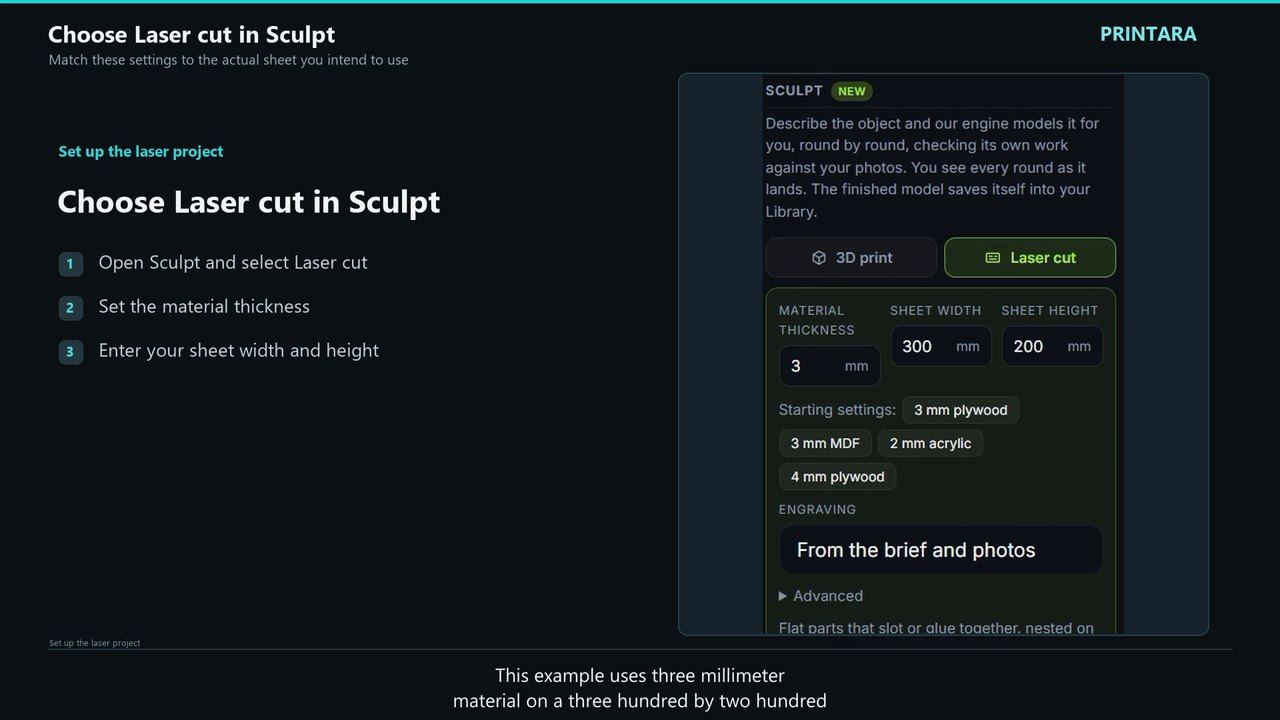
  1. The Sculpt panel in Printara Studio with Laser cut chosen: material thickness 3 mm, sheet width 300 mm, sheet height 200 mm, starting settings and engraving from the brief and photos

    Choose Laser cut and your sheet

    Open Sculpt in Printara Studio and pick Laser cut. Set the Material thickness (0.5 to 25 mm) and your Sheet width and Sheet height (50 to 1500 mm), or start from 3 mm plywood, 3 mm MDF, 2 mm acrylic or 4 mm plywood.

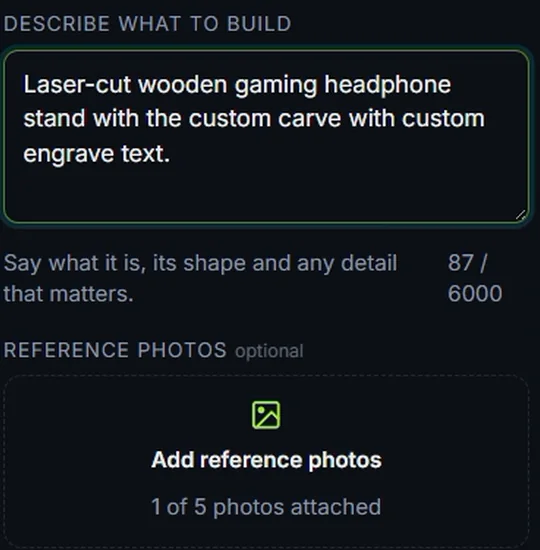
  2. Describe what to build in Printara Studio: a short brief for a laser-cut headphone stand and the reference photos field

    Describe the object

    Write what to build, how big it is and how it goes together. Add up to 5 reference photos and one dimension you know, if you have them. Engraving follows the brief, stays off, or engraves your own text of up to 80 characters.

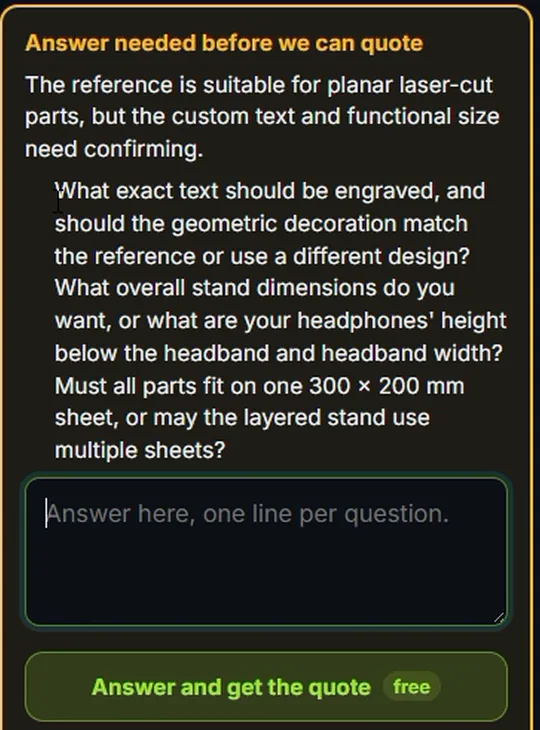
  3. Answer needed before we can quote: Printara asks about the engraved text, the stand dimensions and the sheet size, with a free Answer and get the quote button

    Get a free quote

    Get a free quote plans the build first. When something is unclear it asks, and your answers join the brief. The quote shows the credits before you press Confirm and build.

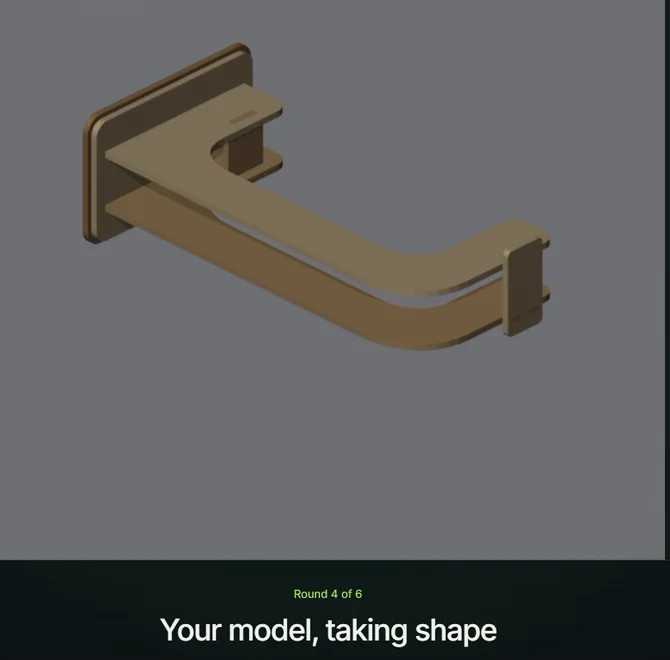
  4. A laser-cut headphone stand taking shape in the Sculpt build view of Printara Studio, round 4 of 6: Your model, taking shape

    Watch it build

    The engine models the parts round by round and checks its own work, and you see every round as it lands. The finished kit saves itself into your Library. Want a change? Edit with Sculpt makes a new linked version from a free edit quote.

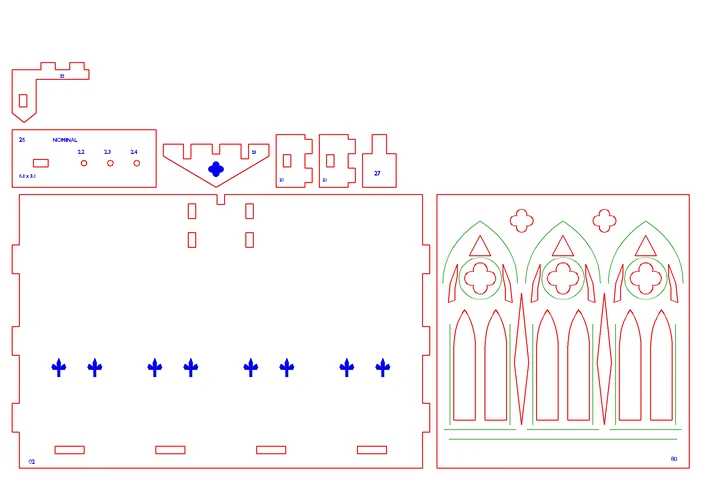
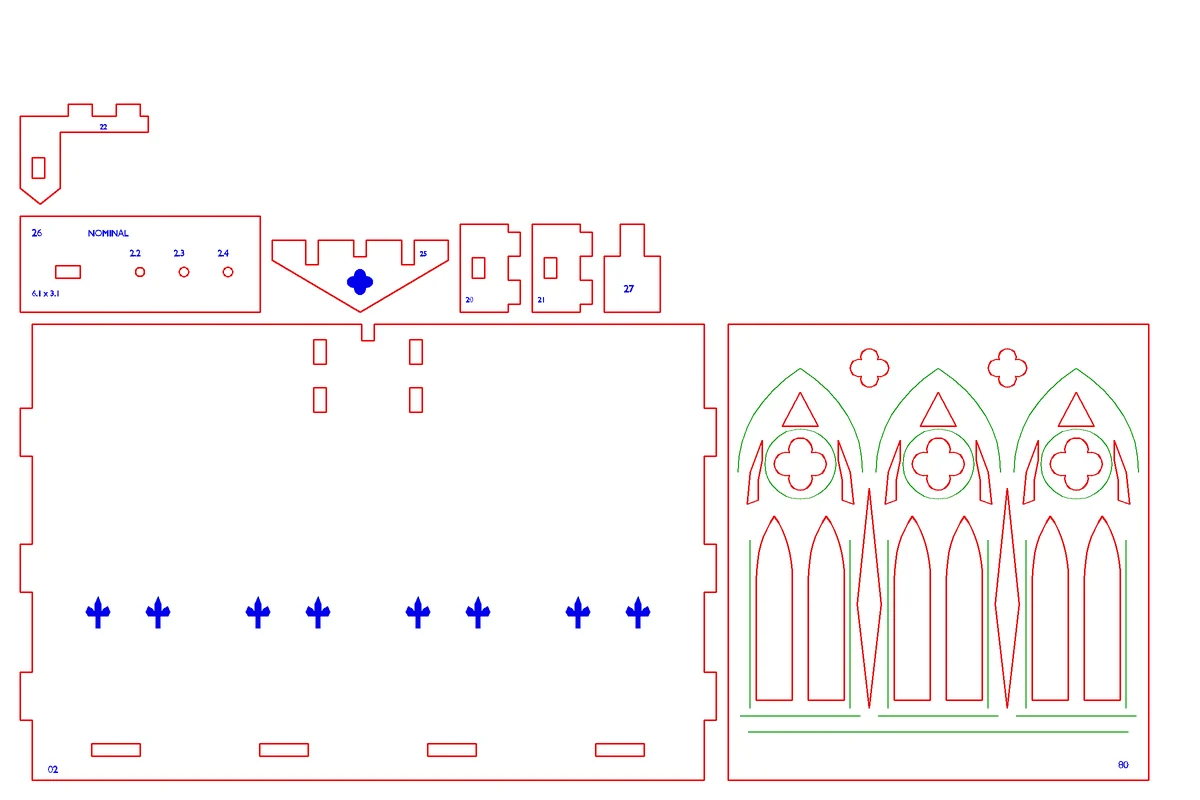
  5. Sheet 2 of the Gothic jewelry box drawn from its SVG file: red cut lines, green score lines and blue engraving, with two small fit-test coupons

    Check the cutting sheets

    Parts are nested on as many sheets as they need, with the margin and spacing you set. Red lines cut, green lines score, blue areas engrave. Preview shows each sheet before you download it.

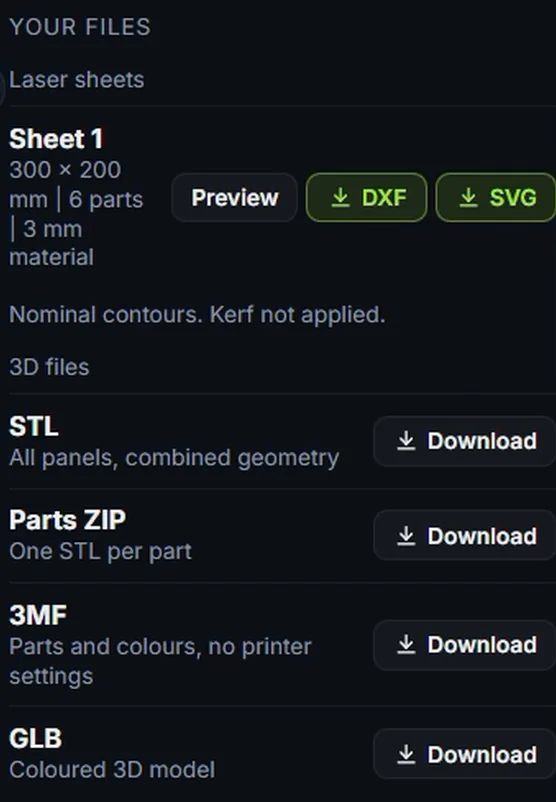
  6. Your files in Printara Studio: sheet 1, 300 × 200 mm, 6 parts, 3 mm material, with Preview, DXF and SVG, the note that the contours are nominal and the kerf is not applied, and STL, Parts ZIP, 3MF and GLB downloads

    Download and cut

    Your files lists a DXF and an SVG for every sheet, plus the kit as STL, Parts ZIP, 3MF and GLB. Import one format into your laser software, check the millimetres and the layers, set the kerf and cut.

The quote is free. Building uses credits from a plan or a credit pack, the quote shows how many before you confirm, and credits come back automatically if a build fails.

Design a laser-cut headphone stand Printara Academy, 3 min 36 s, with captions. Open the lesson page

Step by step

Tutorial: design your first laser-cut kit

  1. Open Printara Studio, sign in, choose Sculpt and pick Laser cut.
  2. Set the material thickness and your sheet width and height in millimetres.
  3. Describe the object, add a reference photo if you have one, and press Get a free quote.
  4. Answer any questions, check the quote and press Confirm and build.
  5. Preview each sheet, download the DXF or SVG, set the kerf in your laser software and test a joint first.

Output files and review

Output formats

What you download for every laser kit, and what to check before you cut.

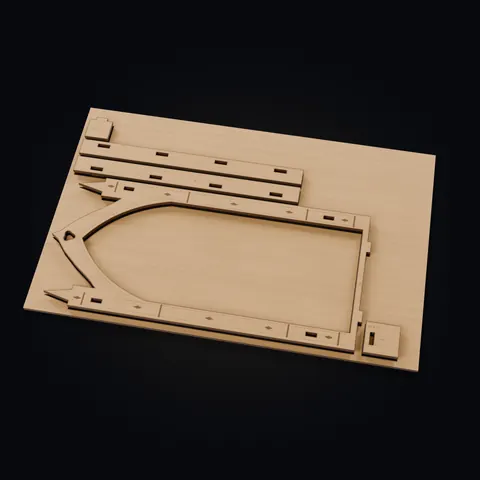
Sheet 2 of the Gothic jewelry box, drawn from its SVG file: the front wall, the left Gothic tracery overlay, latch parts and two fit-test coupons, with red cut lines, green score lines and blue engravingFit-test couponsScore lines on the tracery
  • Cut
  • Score
  • Engrave
Sheet 2 of 7 of the Gothic jewelry box, 300 × 200 mm, drawn from its SVG file with the lines thickened for the screen. Parts 26 and 27 are fit-test coupons: cut them first.

Before you cut

  1. Import one format, SVG or DXF, not both, and check that it reads millimetres.
  2. Map red to cut, green to score and blue to engrave, and set the kerf for your material.
  3. Cut a test joint first, a fit-test coupon if the kit has one, then the full kit.
  • SVGOne per sheet, true size in millimetres: CUT red, SCORE green, ENGRAVE blue
  • DXFOne per sheet, R12 in millimetres, layers CUT, SCORE, ENGRAVE and ENGRAVE_FILL
  • STLAll panels as the assembled model
  • ZIPParts ZIP: one STL per part
  • 3MFParts and colours, no printer settings
  • GLBColoured 3D model
  • PDFPaper decals at actual size on A4, Letter or A3, for kits built from reference photos

Kerf and fit

Printara never applies a kerf: the sheets carry nominal contours. The Fit clearance you set (0.1 mm unless you change it, up to 2 mm) is the total play added to every slot. Set the kerf in your laser software from your material profile.

Material preview

The 3D view can show the kit as plywood, MDF, oak, walnut, black acrylic or frosted acrylic. The preview changes the look only, never the cutting files.

Sell the files

A laser kit can be listed in the laser-cut category of the Printara marketplace, where buyers download its sheets as SVG and DXF. For Etsy, the download guide links a ZIP of every sheet.

Fill engraving: in the DXF, set the ENGRAVE_FILL layer to a fill (raster) operation and check the toolpath preview. In the SVG, fill engraving comes as filled blue shapes.

Who it is for

Use cases

What a sentence that turns into a cut-ready kit is good for.

The Gothic jewelry box made in Printara with its lid open on its wooden hinges and the latch key slid out

Makers with a laser cutter

Design a box, a sign or a gift for your own sheet size and stock thickness, download the sheets and cut it on your machine. Test a joint first: the files are nominal.

The image is a render of the Gothic jewelry box with its lid open, from its real files, in a birch preview.

Book nooks and miniatures

Layered scenes with depth: houses, arches, stairs and engraved stonework, nested on as many sheets as they need.

Gifts and personal engraving

Signs, door hangers and plaques, with your own engraved text of up to 80 characters.

Classrooms and maker spaces

Go from a sentence to a kit students can cut and assemble, and talk about joints, kerf and fit along the way.

FAQ

Frequently asked questions

What is an AI laser cut generator?

An AI laser cut generator turns a description, and photos if you have them, into flat parts you can cut from sheet material. In Printara Studio the result is a kit: the parts are modelled in 3D, nested on cutting sheets of the size you set and exported as SVG and DXF files with cut, score and engrave layers, plus 3D files of the assembled model.

Which files do I get?

Your laser cut files: a DXF and an SVG for every sheet, at true size in millimetres. The SVG uses red for CUT, green for SCORE and blue for ENGRAVE, with fill engraving as filled shapes. The DXF is R12 with the layers CUT, SCORE, ENGRAVE and ENGRAVE_FILL. You also get the assembled model as STL, GLB and 3MF, and a Parts ZIP with one STL per part.

Does Printara apply kerf compensation?

No. The sheets carry nominal contours, so set the kerf in your laser software from your material profile. The fit clearance you choose (0.1 mm unless you change it, from 0 to 2 mm) is added to every slot. Cut a test joint before the whole kit; the Gothic jewelry box on this page comes with two fit-test coupons for that.

Can it design a laser cut box with a hinged lid?

Yes. The Gothic jewelry box on this page was made as a box from a text brief: 180 × 120 × 120 mm in 3 mm plywood, 27 parts on seven 300 × 200 mm sheets, with tab-and-slot walls, a two-layer lid on laser-cut wooden hinges, a sliding latch key and removable dividers. The hinges turn on two 2 mm metal pins, which are not cut and not included. The opening was checked in 3D on the generated parts up to 100 degrees, not on a cut box, so cut the two fit-test coupons first to check the fit in your material.

What sheet sizes and materials can I use?

Any sheet from 50 to 1500 mm on each side and any material thickness from 0.5 to 25 mm. The Studio starts at 300 × 200 mm and 3 mm, with quick settings for 3 mm plywood, 3 mm MDF, 2 mm acrylic and 4 mm plywood. You can also set the sheet margin, the spacing between parts and whether parts may turn 90 degrees to fit.

Can I start from a photo or a picture?

Yes. Add up to 5 reference photos (PNG, JPEG or WebP) next to your brief. The brief says what it is, how big it is and how it goes together; the photos show how it looks. You can also make a clean picture first in the Image tab of Printara Studio, as was done for the magical book nook on this page.

Can it engrave names or text?

Yes. Engraving can follow the brief and the photos, stay off, or use your own text of up to 80 characters. Each engraving travels with its part on the sheet, and fill engraving comes as filled shapes in the SVG and as the ENGRAVE_FILL layer in the DXF.

Will the files work with my laser cutter?

The files are standard SVG and DXF R12 in millimetres, which most laser software can import. Printara does not test them on specific machines, so import one format, check the scale and the layer mapping, and cut a test piece first.

Can I change a kit after it is built?

Yes. In your Library, Edit with Sculpt opens the finished model: describe the change and get a free edit quote. The edit becomes a new linked version, and the original stays as it was.

What are paper decals?

For laser kits built from reference photos, Printara can turn the picture details into printable paper decals. You get a PDF at actual size on A4, Letter or A3: print it at 100 %, cut out each decal and glue it onto the matching part. The decals are an optional finish, not a cutting or engraving file.

Can I sell what I make?

Yes. Under Printara's Terms you keep ownership of the models you generate, and you give Printara a non-exclusive licence to display, distribute and market them. You are responsible for making sure a design does not copy someone else's characters, trademarks or designs before you sell it. With a paid creator plan you can list a kit in the laser-cut category of the Printara marketplace, where buyers download its SVG and DXF sheets.

Do I need an account, and what does it cost?

Printara Studio opens after you sign in, and a Printara account is free. The quote is free; building uses credits from a plan or a credit pack, and the quote shows the exact credits before you confirm. If a build fails, the credits come back automatically.

Design your first laser-cut kit.

Start with one sentence about the object, its size and your sheet. Check the free quote, build it, and download SVG and DXF files for your laser.

Free account. In Sculpt, choose Laser cut and get a free quote: it shows the credits before you build.

Printara is an AI-powered creative manufacturing platform for creating 3D models, dioramas, laser-cut designs, molds and printable products.